How do I link my Amazon account?
See also the Networks Setup guide for Amazon.
To link your Amazon account, you should complete all the steps from this article.
Before you start
- Make sure you use Appodeal SDK 2.10.3+/ Appodeal Unity plugin 2.14.5+.
- Make sure BidMachine is enabled in Mediation Settings.
- Make sure you have a BidMachine Adapter in your project.
It is included in Appodeal SDK by default, make sure you haven't removed it from the project.
- Make sure you have an Amazon Adapter in your project. (Only for iOS platform).
Step 1: Create an Amazon account
If you have already created an Amazon publisher services account, skip this step.
1.1 In order to create an Amazon account, you first need to provide us with the email that you will be using to sign up for Amazon publisher services so we can share it with Amazon for approval. Please contact support@appodeal.com to share your Amazon account email.
Once it is approved, Amazon will send the invitation link for account creation to this email.
Proceed to step 1.2 of the guide only after receiving the link from Amazon.
Ad monetization through Amazon is still in beta. Not all publishers and apps can be approved by Amazon ad network.
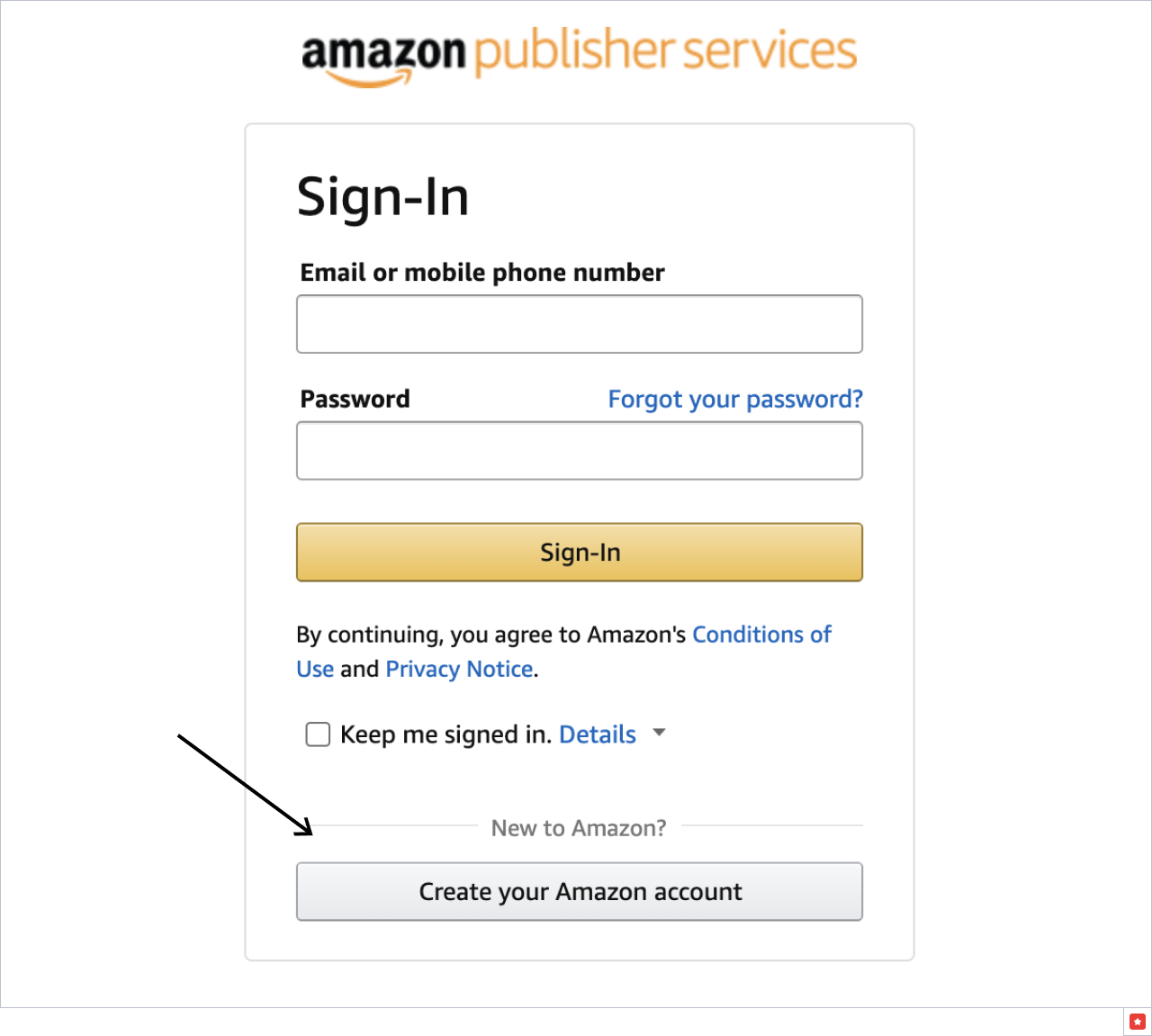
1.2 Follow the link and click "Create your Amazon account".
1.3 Fill in all the fields and click "Create your Amazon account".
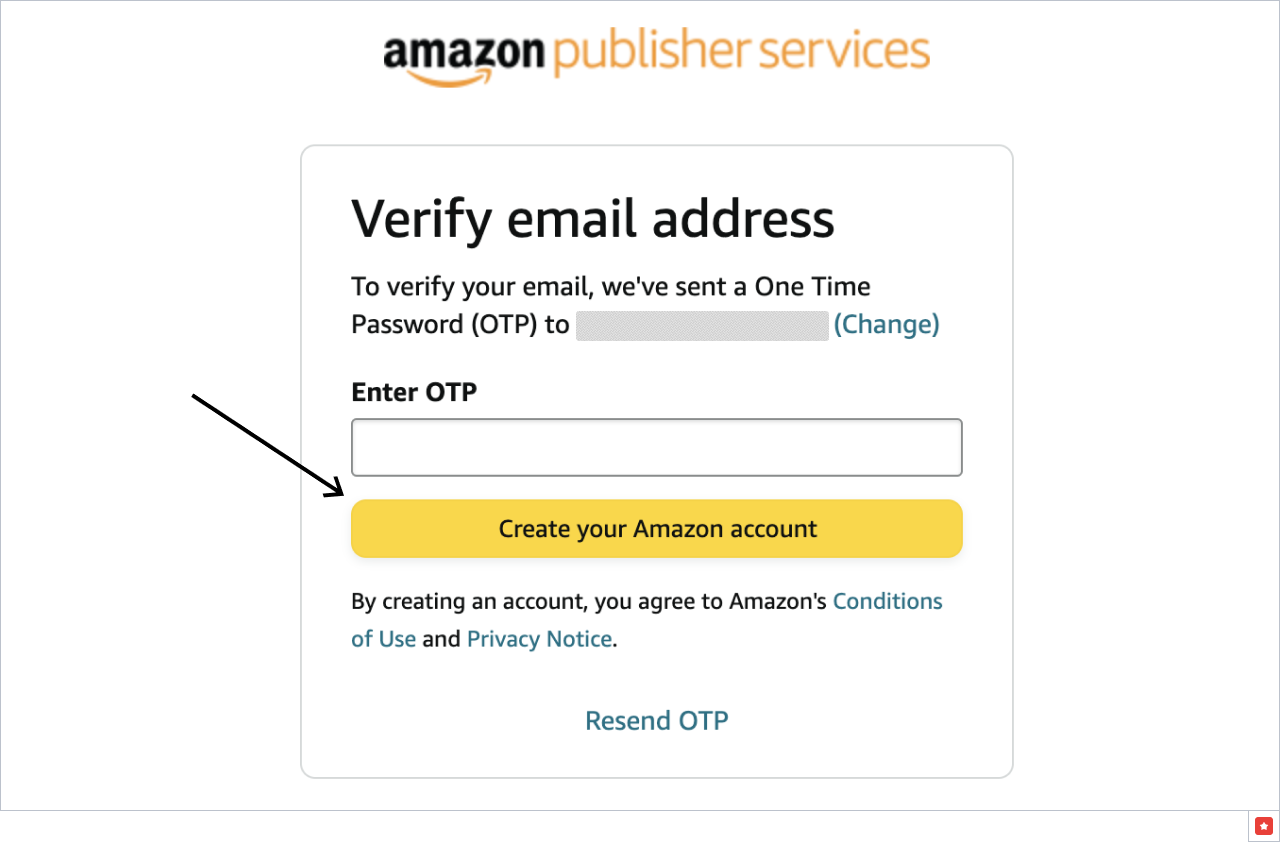
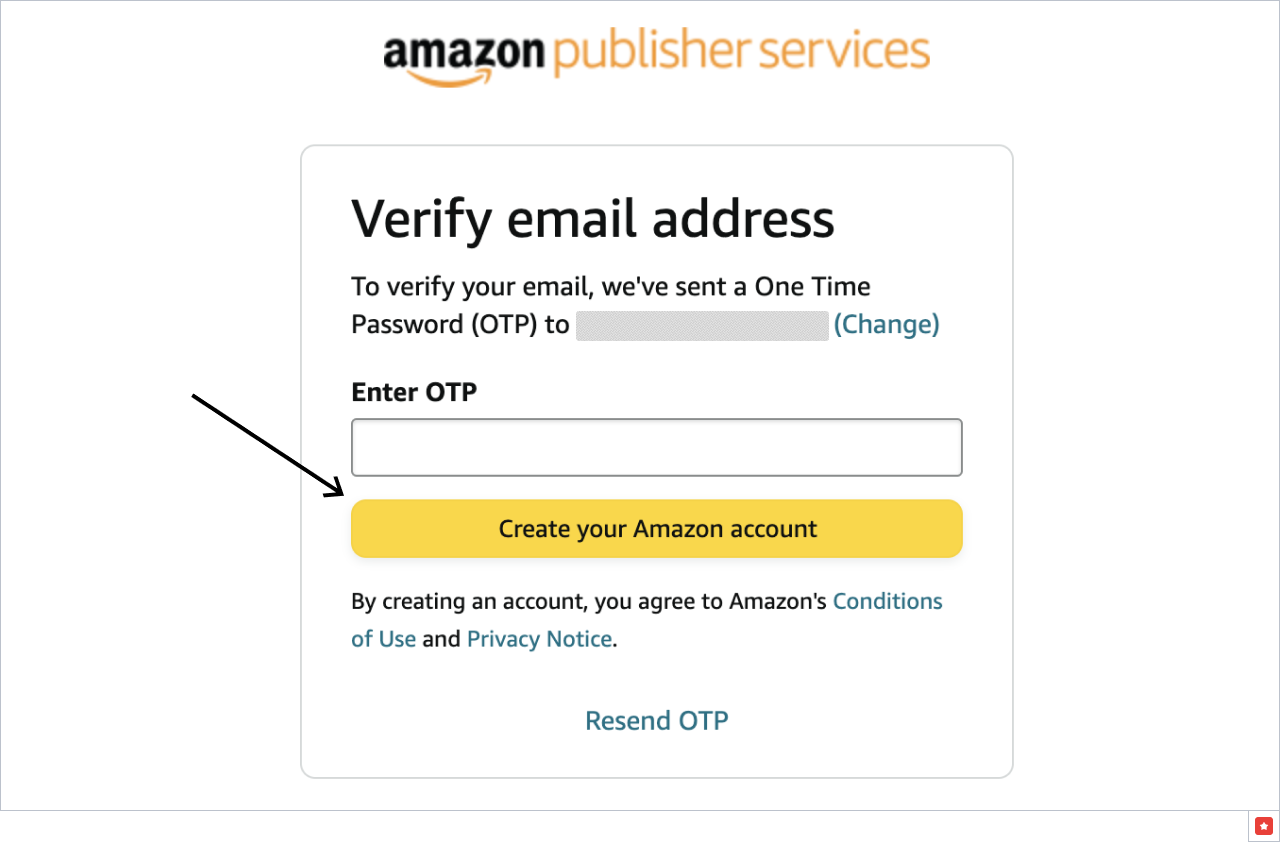
1.4 After that, you should receive a one-time password (OTP) to your email. Enter the OTP and click "Create your Amazon account":
1.5 Reach out to support@appodeal.com once your Amazon account has been created. We will contact Amazon to provide you with access to S3 credentials (they are required to import reports).
Step 2: Create a New Amazon App & Ad Slots
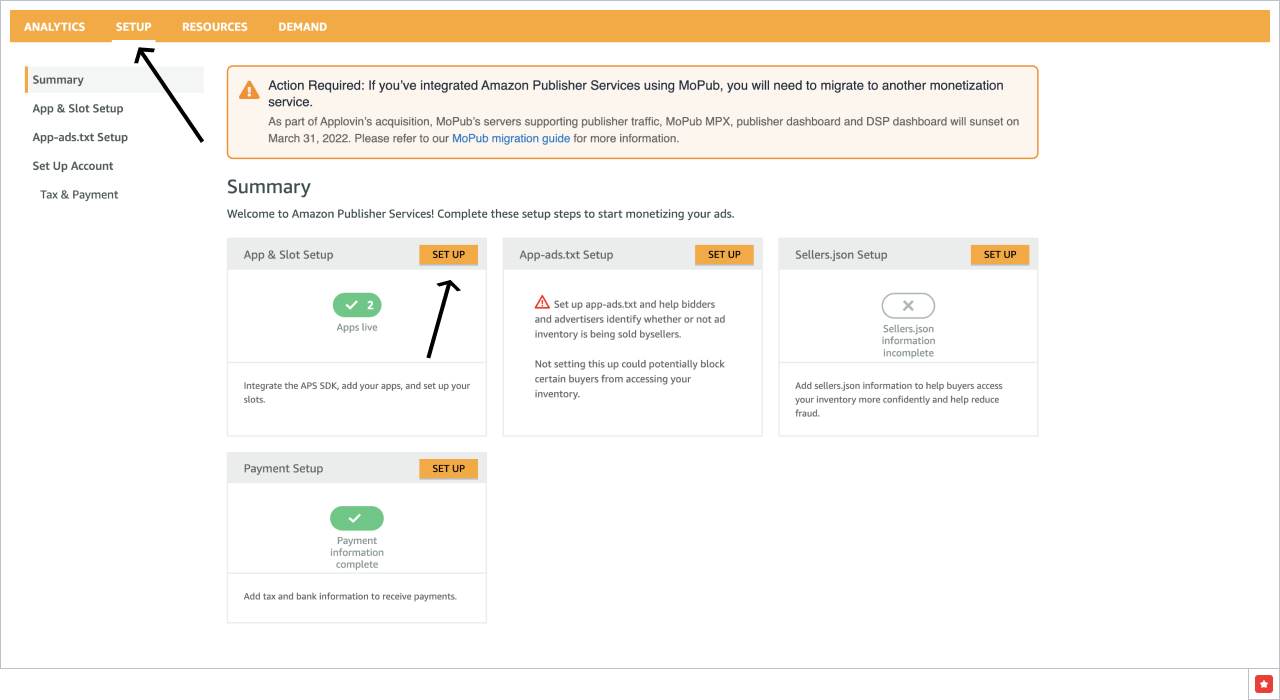
2.1 Go to the Set Up Tab and click SET UP under the App & Slot section.
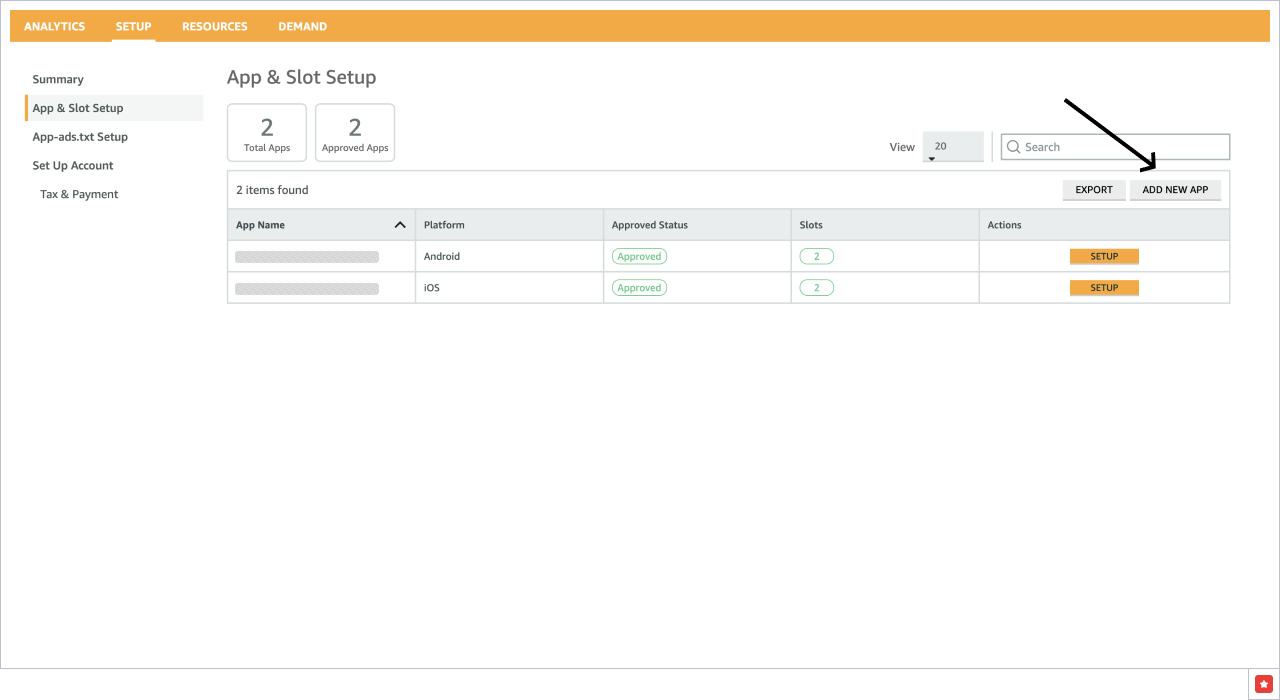
2.2 Click "Add New App".
2.3 Insert App Market URL, click Find App, check the COPPA agreement and click "Add App".
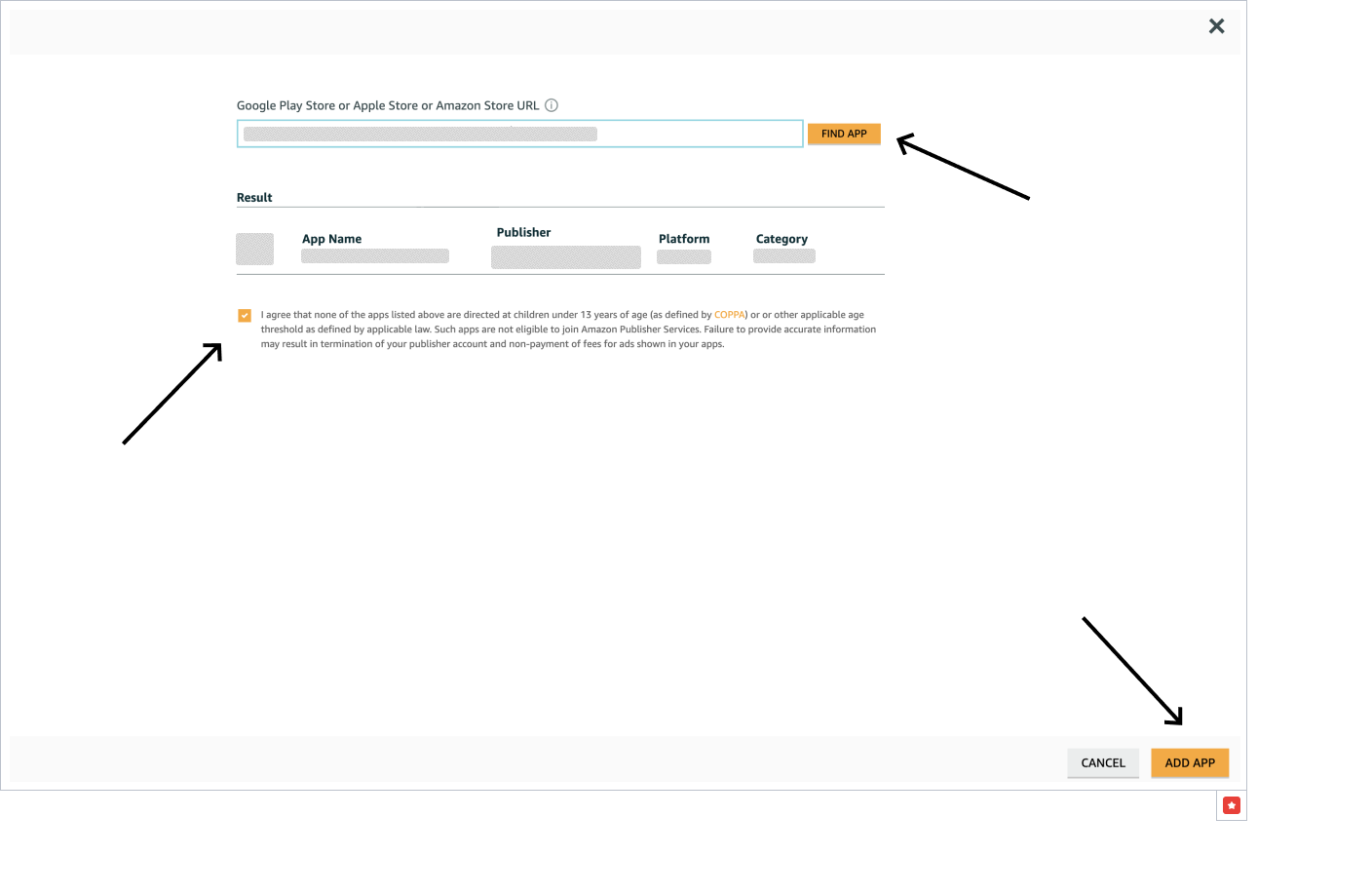
Once you've added your app, you will receive an App ID. Your app submission will need to be approved by the APS team before your integration can go live. Please revisit this page to check your app approval status. As your app is getting approved, you may continue with your setup.
Once you've set up your apps, you will configure your slots to generate SlotUUIDs. Slots (aka ad units) are the ad spaces you define in your app.
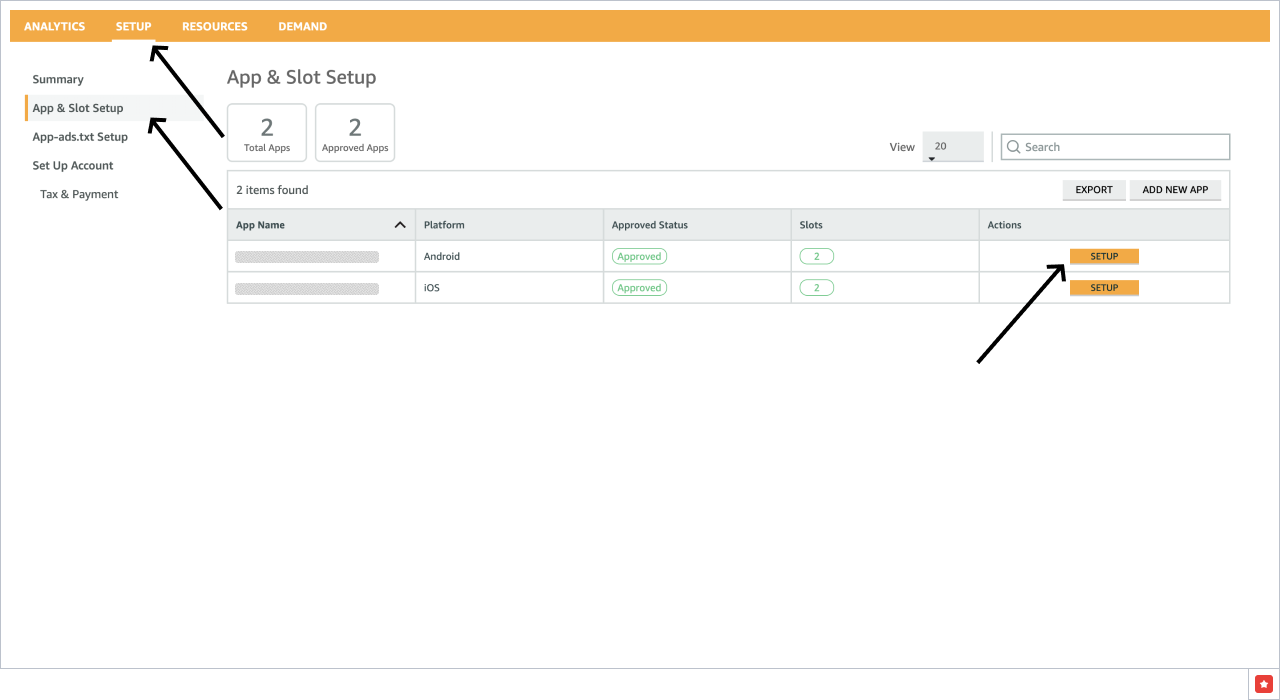
2.4 Click SETUP under the Actions column to add a new Ad Slot.
2.5 Select Other as a Monetization Service and click "Add A Slot".
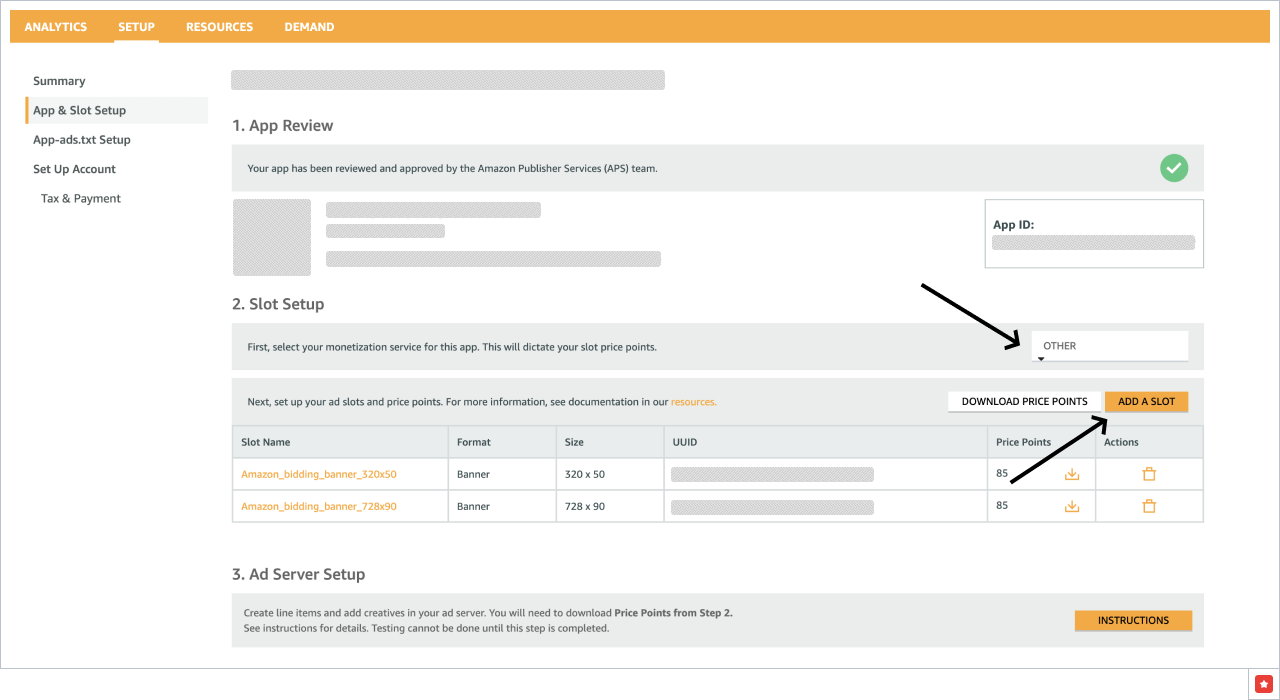
For now Appodeal supports only two ad types: banner and MREC.
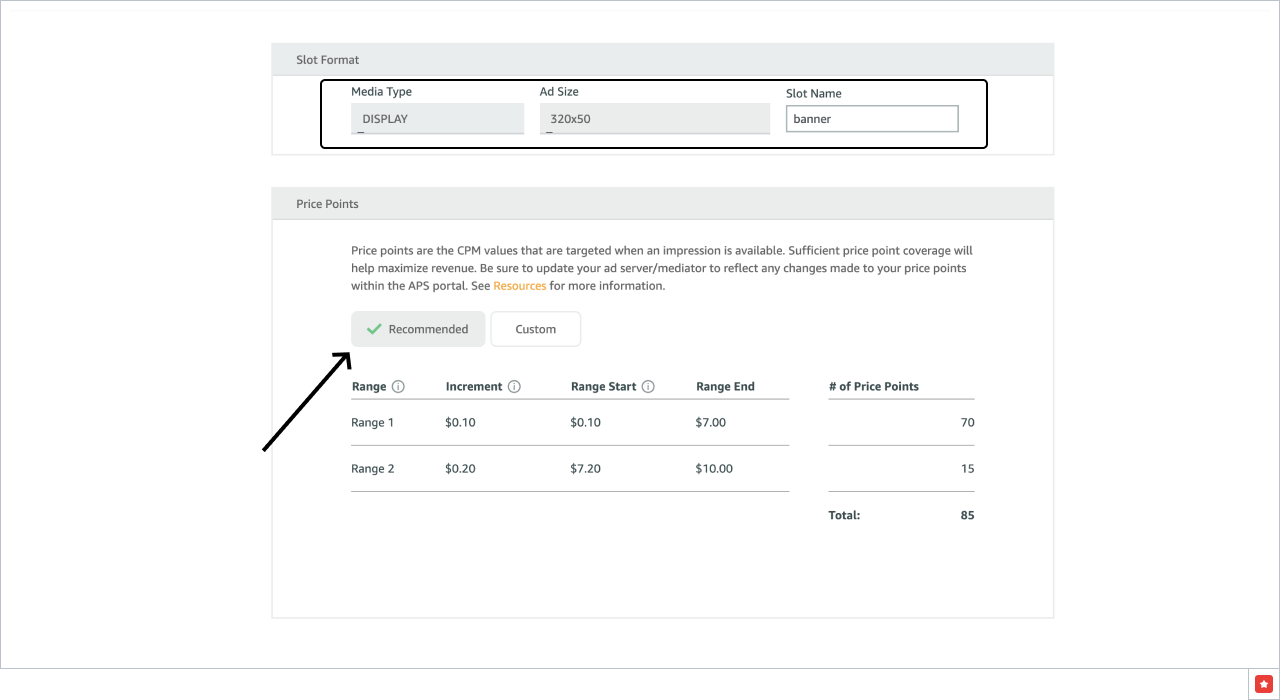
2.6 Choose Media Type, Ad Size and Slot Name. Use Recommended Price Points by default and Save the Ad Slot.
It is mandatory to specify device type for banner line items (phone or tablet).
- Phone banner - 320x50 Ad Size
- Tablet banner - 720x90 Ad Size
- MREC - 300x250 Ad Size
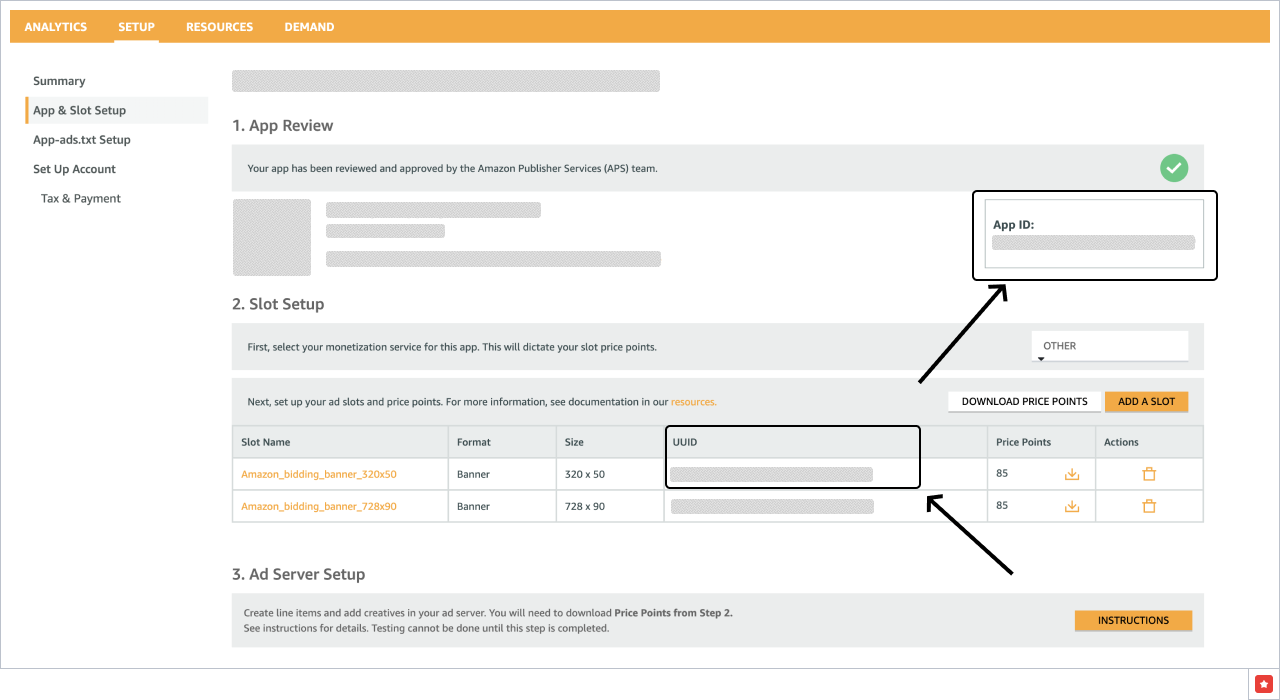
2.7 You can find the App ID and Slot ID (UUID) here. Save them, you will need them later.
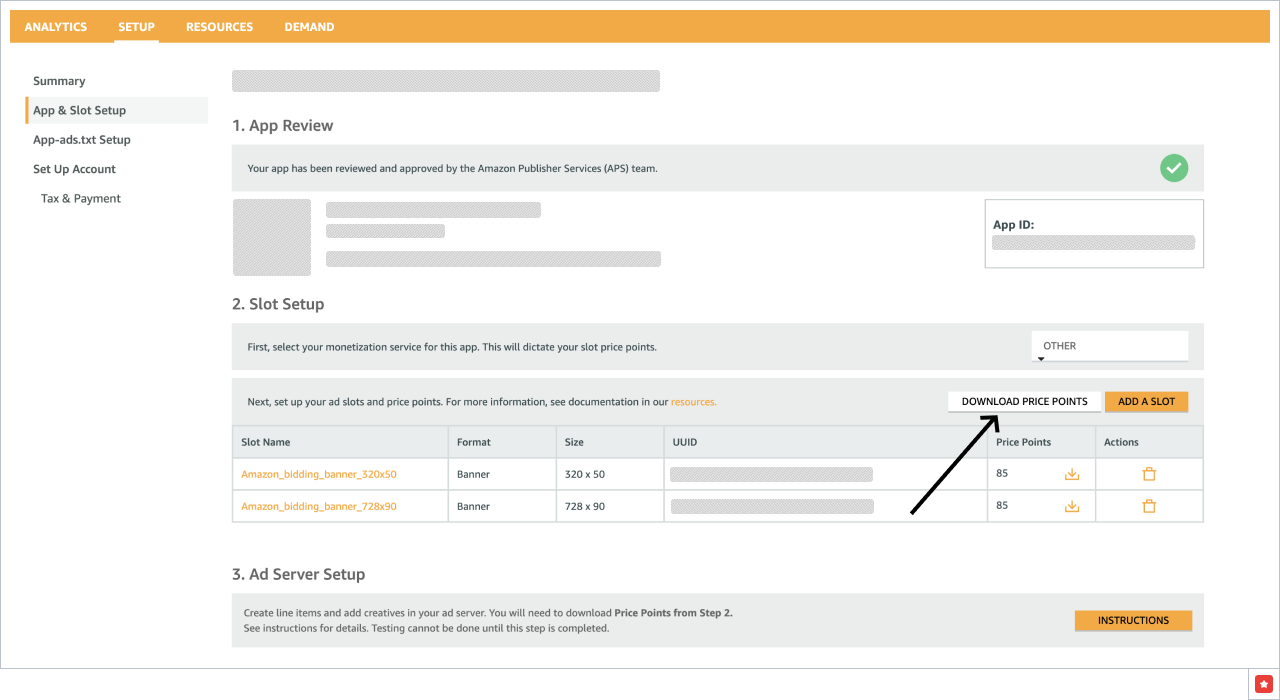
2.8 Download the Price Points csv files and provide them to support@appodeal.com. We will make the appropriate settings for your apps on the Appodeal end.
Step 3: Add Amazon entries in the app-ads.txt file
Be sure to set up app-ads.txt to help bidders and advertisers identify whether or not ad inventory is being sold by authorized sellers.
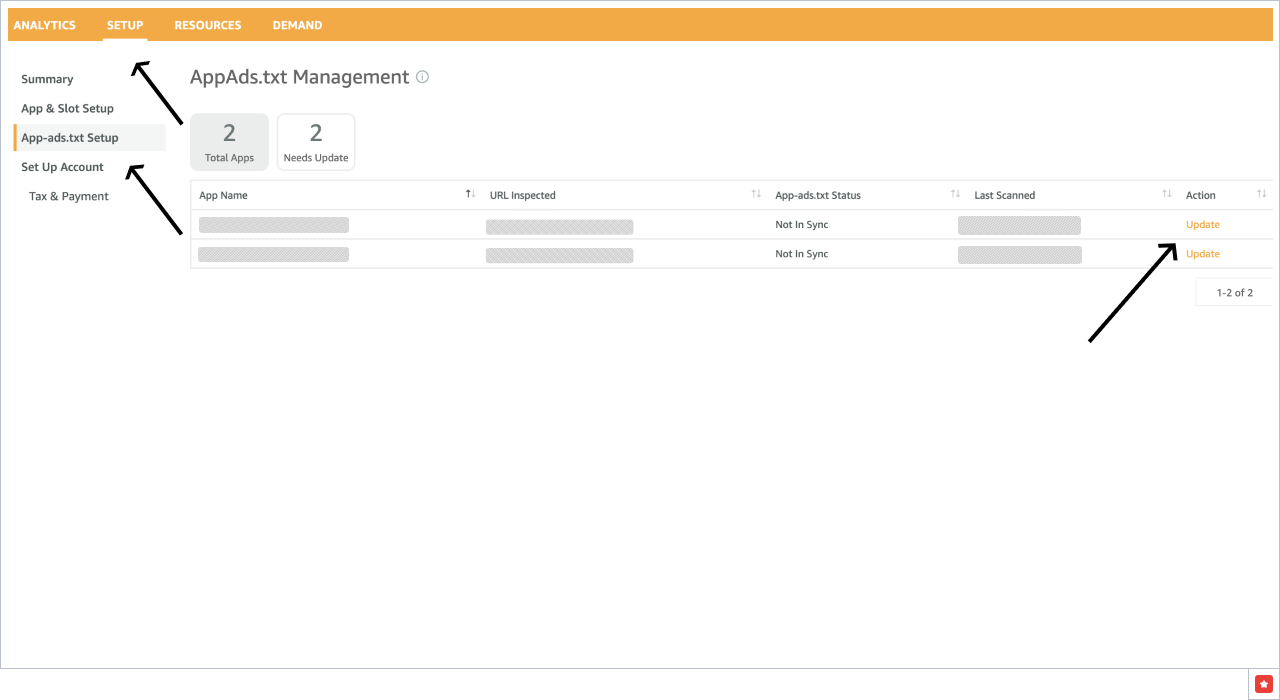
3.1 Go to App-ads.txt Setup Tab and Click Update for the Application.
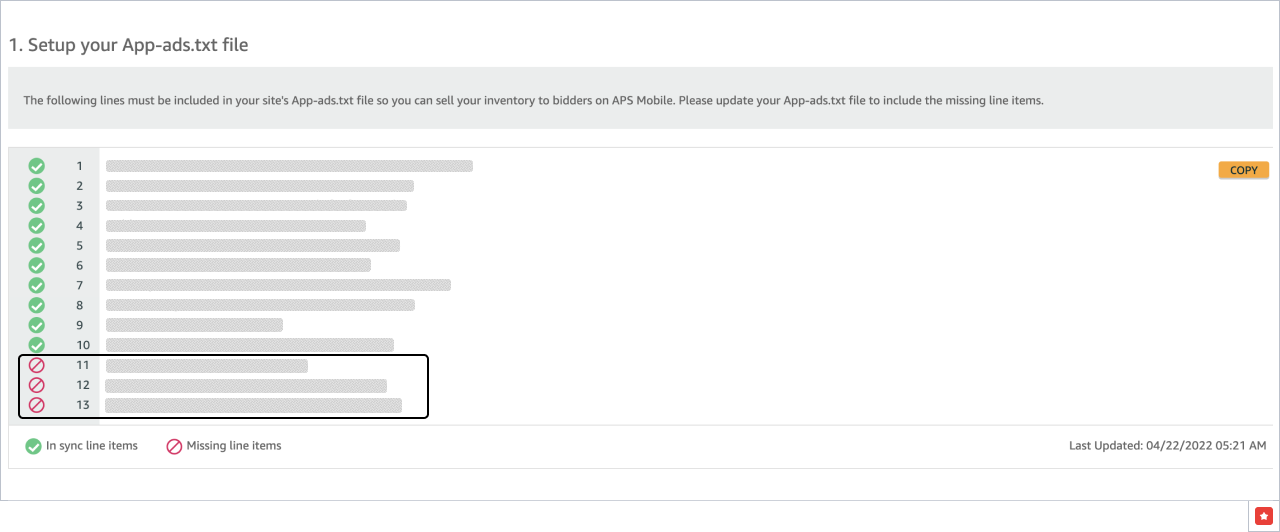
3.2 Copy the missing string and update your App-ads.txt file.
Step 4: Configure Amazon Reporting
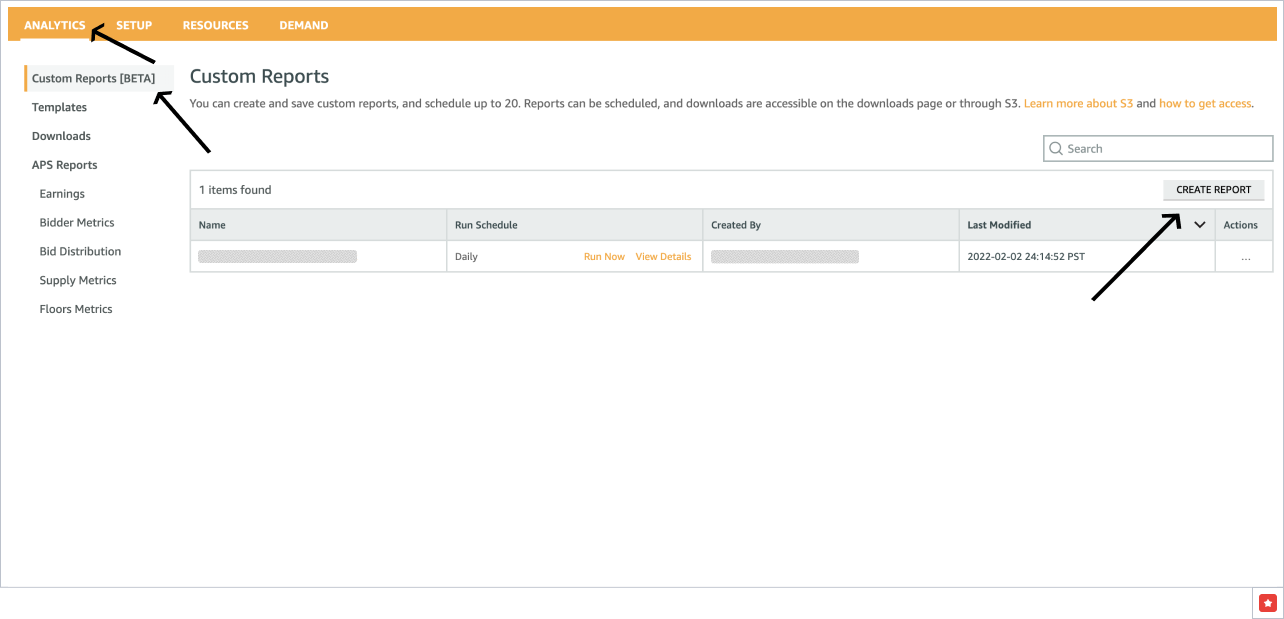
4.1 Open a new custom report form and click Create report.
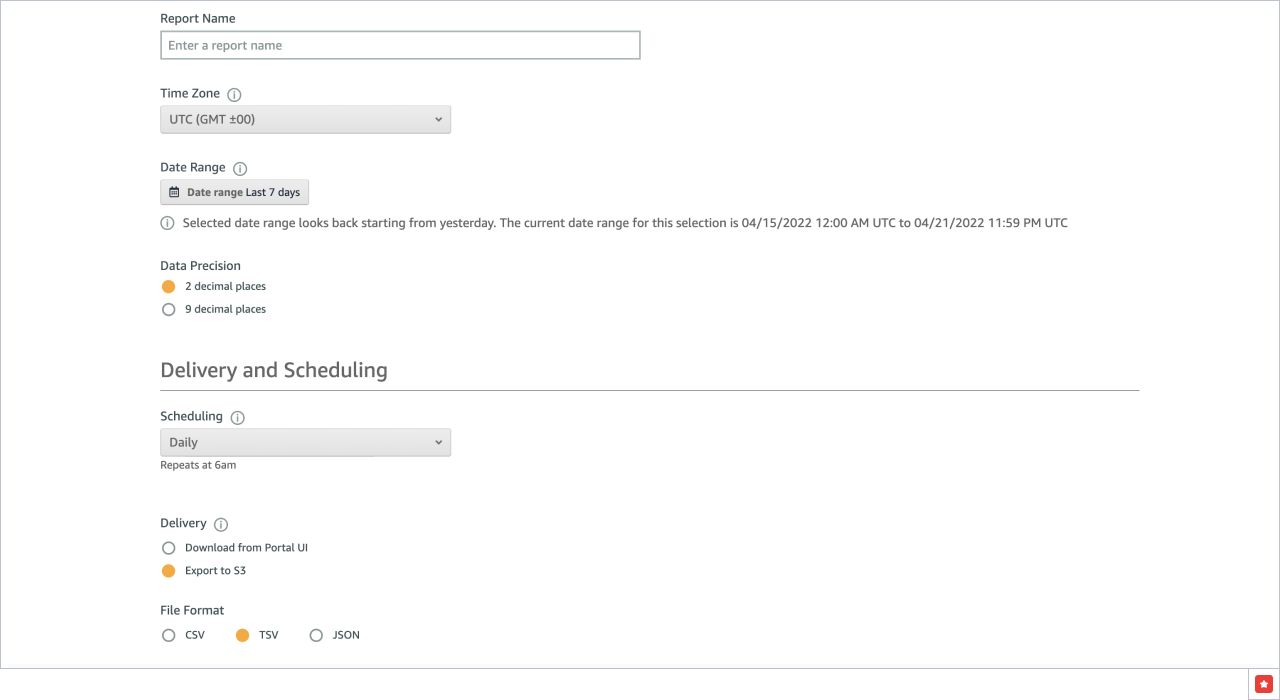
4.2 Fill out the form as shown below and click Save.
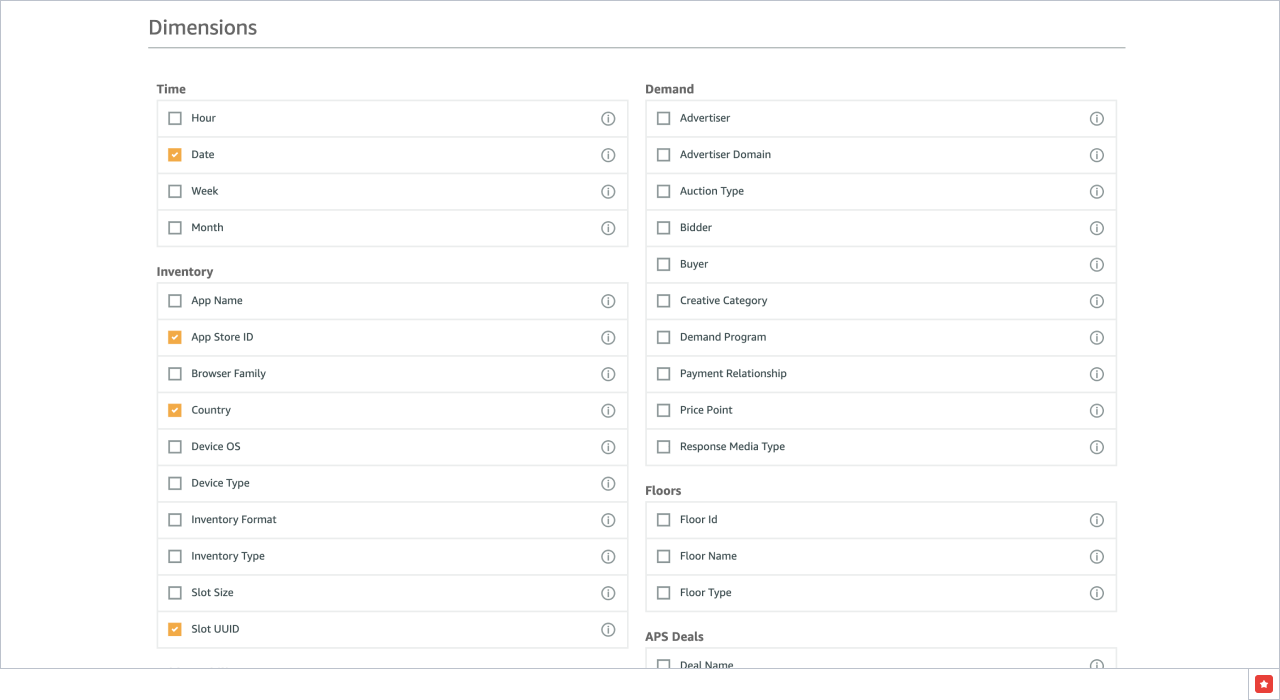
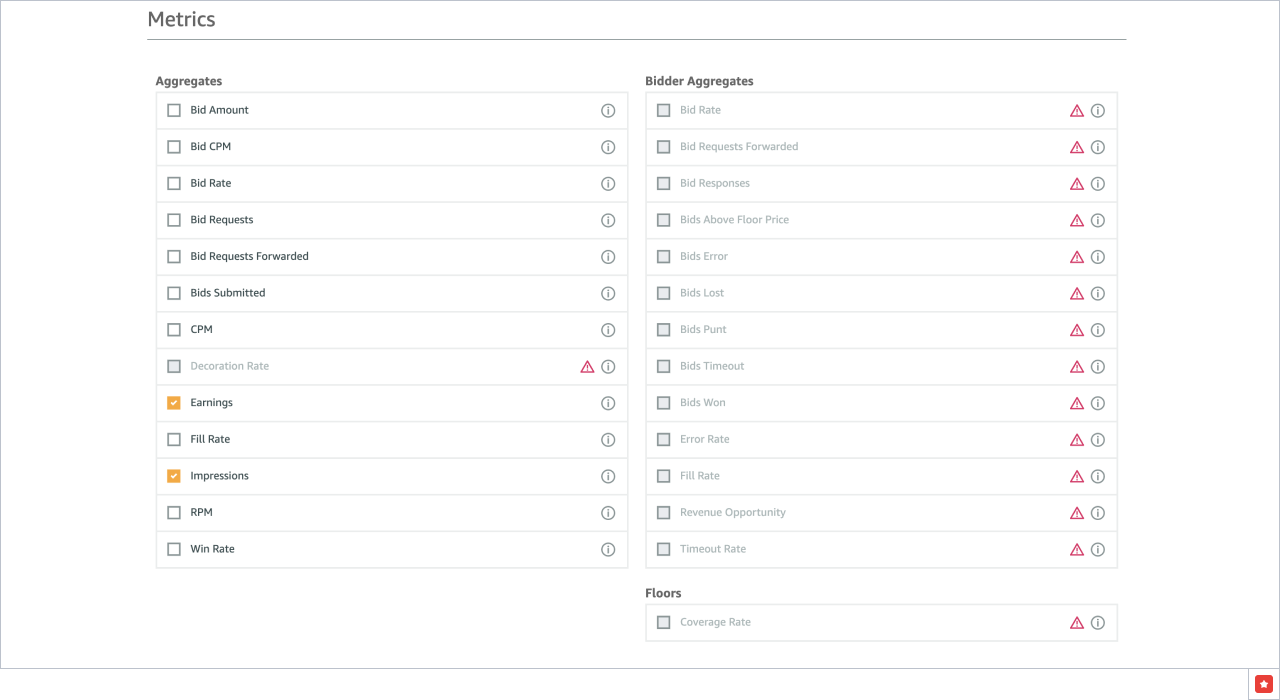
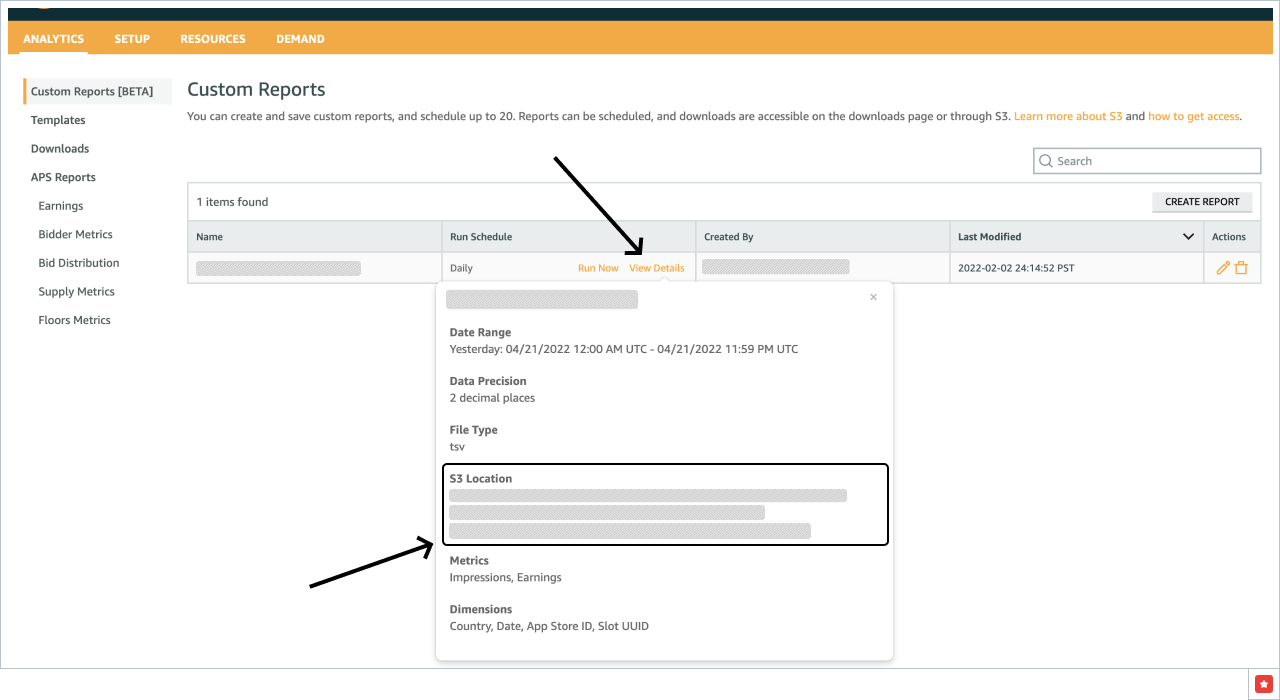
4.3 Get the report S3 location here. Save it, you will need it later.
4.4 Go to Account settings - S3 Credentials.
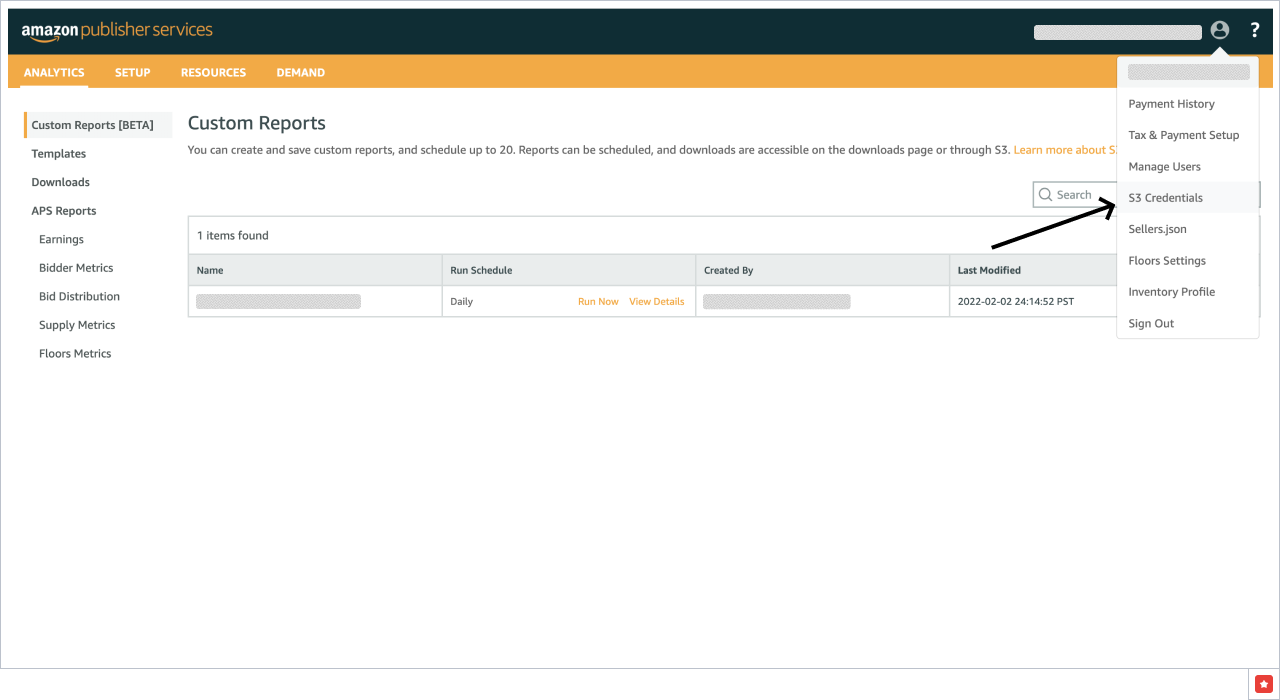
4.5 Get the S3 Access Key & S3 Secret Access Key. Save them, you will need them later.
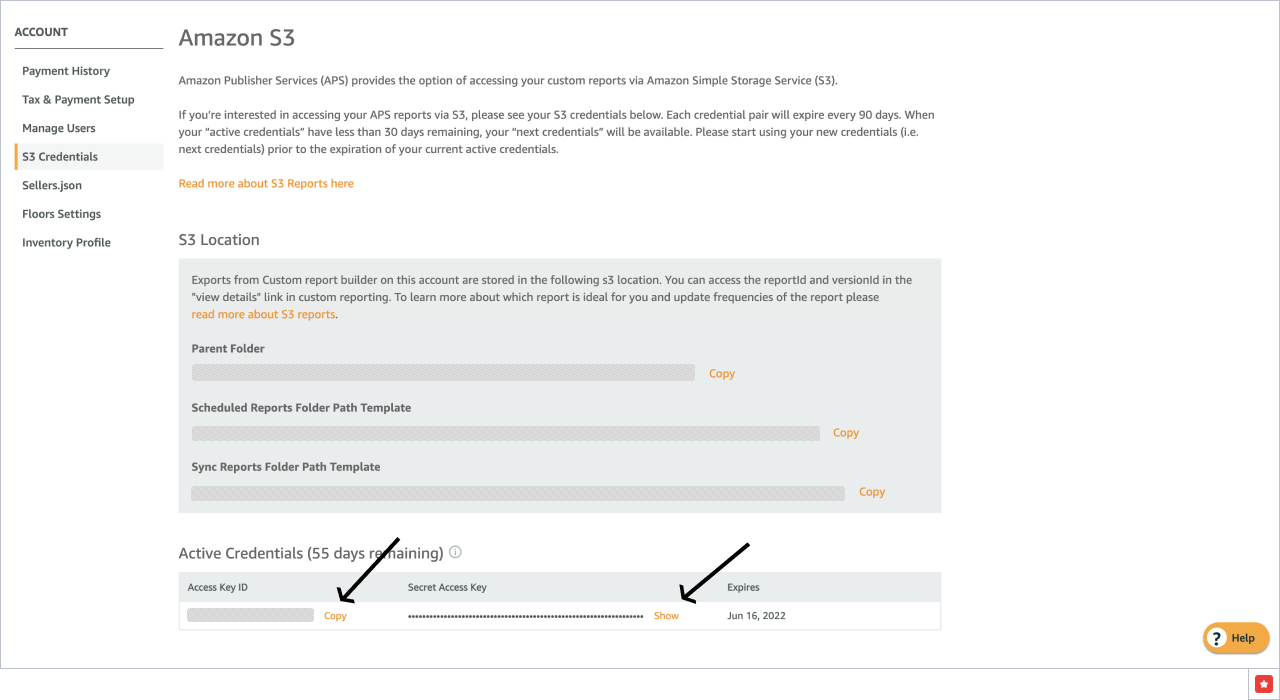
Each credential pair will expire every 90 days. When your "active credentials" have less than 30 days remaining, your "next credentials" will be available. Please start using your new credentials (i.e. next credentials) prior to the expiration of your current active credentials.
Step 5: Link Amazon to your Appodeal account
5.1 Go to https://app.appodeal.com/apps/linked_networks page and click "Amazon" - "Link your account".
5.2 Fill in the following details (numbers in brackets refer to points in the instructions):
- Your Amazon account email (1.1)
- Custom report S3 location (4.3)
- S3 Access Key & S3 Secret Access Key (4.5)
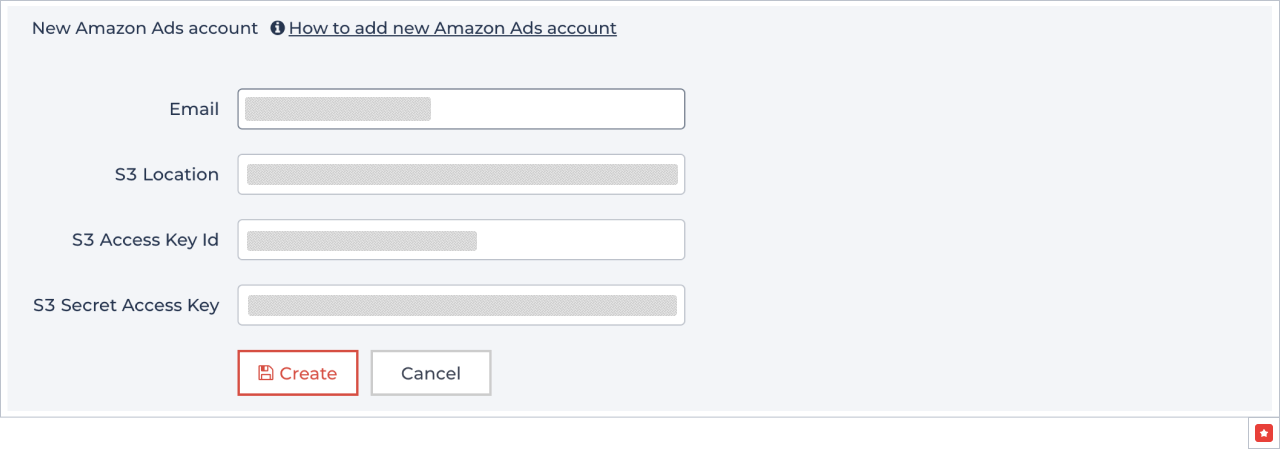
5.3 Select the appropriate app on the https://app.appodeal.com/apps page, open App Settings, then Mediation Settings.
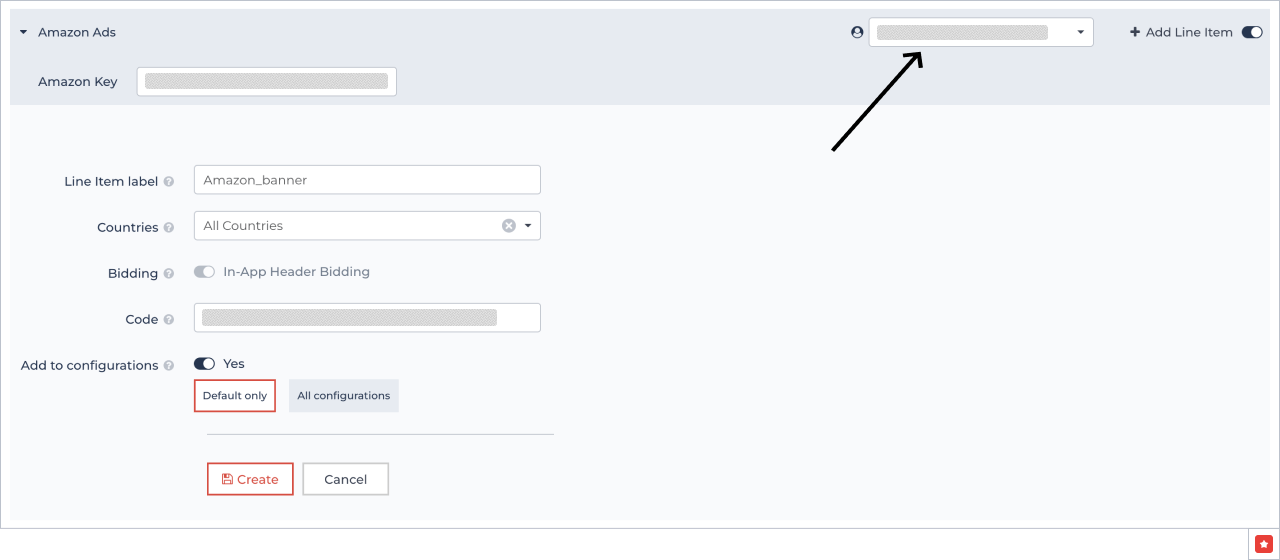
5.4 Go to the desired ad type, choose the created Amazon account, click on "+Add Line item" and fill in:
- Amazon key - your Amazon App ID (2.7)
- Line item Code - Amazon UUIDs (2.7)