How do I link my IronSource account?
See also the Networks Setup guide for ironSource.
To connect your own IronSource account to Appodeal, follow these simple steps.
Step 1: Create and prepare an IronSource account
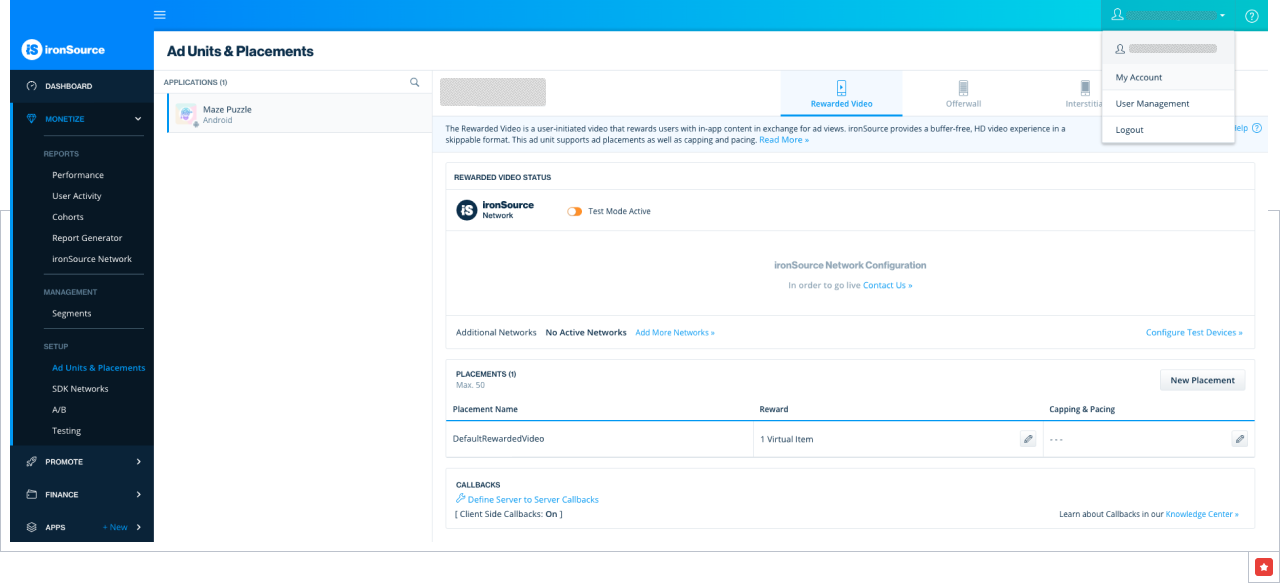
First, you should get your secret key. Go to the My Account page and open an API tab. There you can find your secret key.
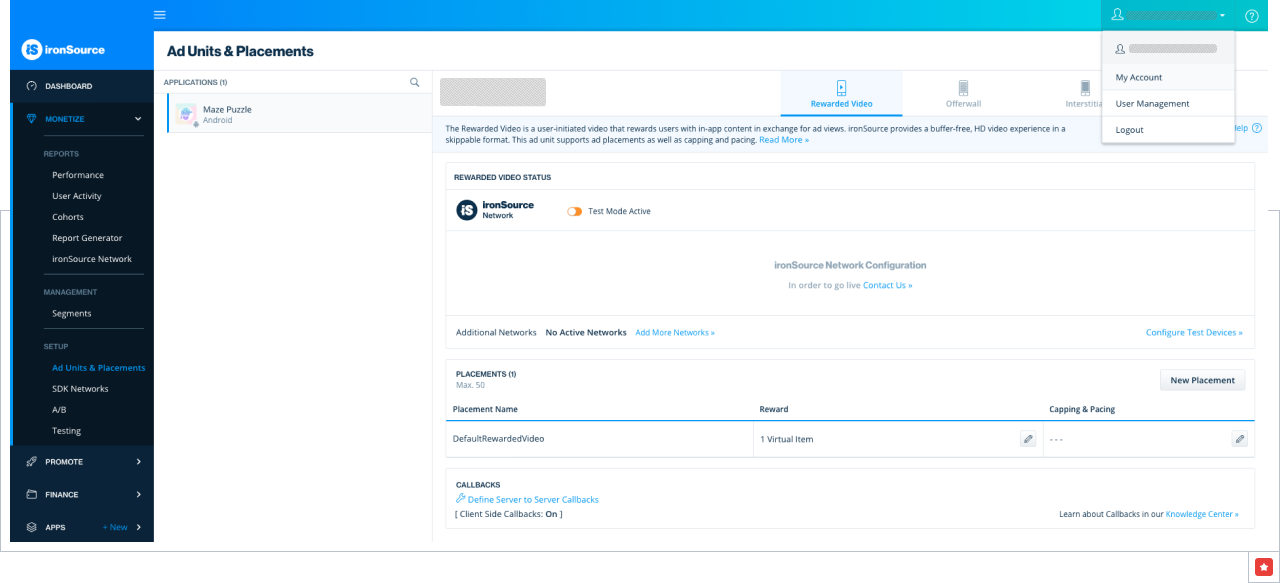
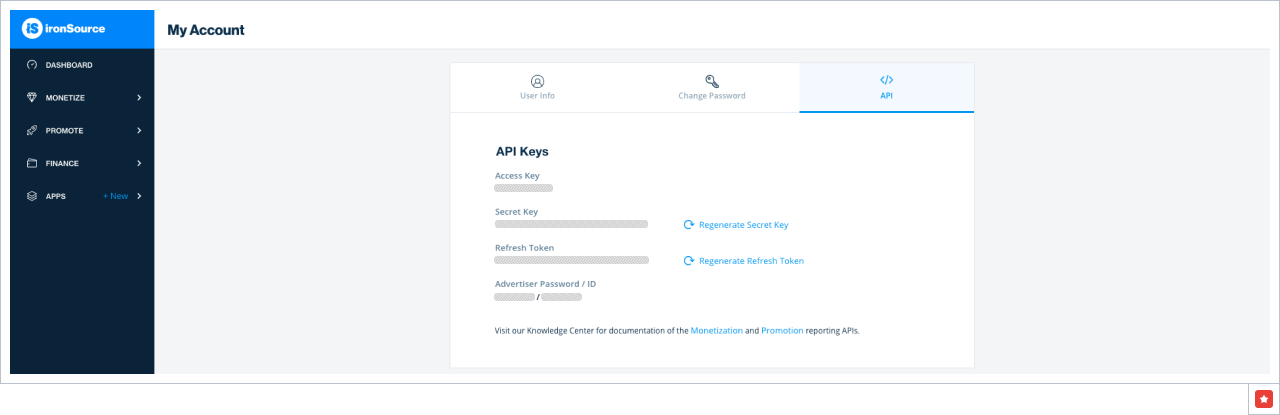
Step 2: Add keys to the Appodeal dashboard
At this moment you should already have the key from the previous step. Now you need to add its value on the Appodeal side to finish linking your account. Go to the Network Accounts page. Find ironSource in the list of ad networks and click on the Link your account button.
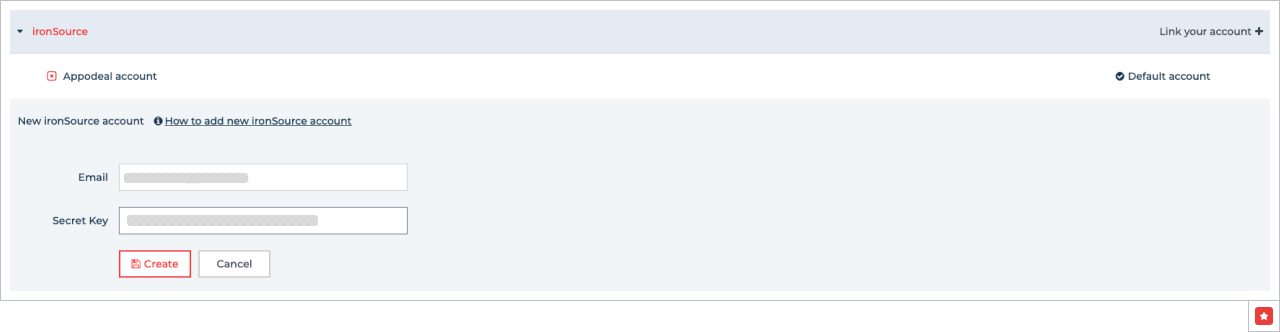
Fill a secret key in your email box associated with the ironSource account and hit the Create button.
Mark the created account as default by clicking on the Make default button.
Step 3: Create ad units on the IronSource side
First, you need to add your app if you don't have so yet. You can do it on this page. To create a new app you should enter the App URL, choose the app category, and press the Add App button.
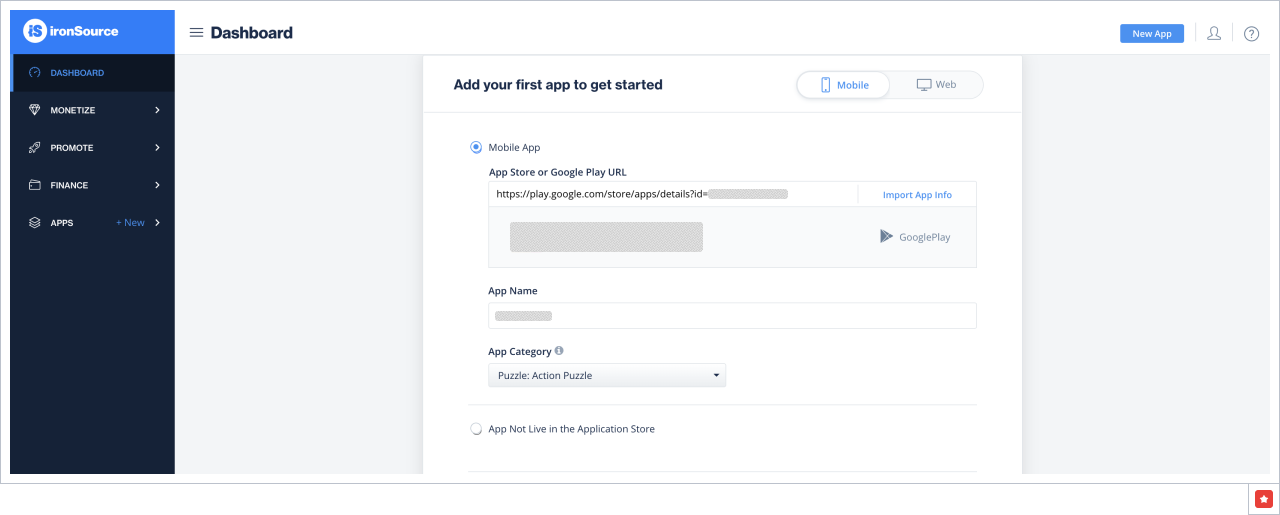
Second, head to the Finance section of the dashboard. You should fill in your payment and company information. These steps are required in order to get real ironSource ads.
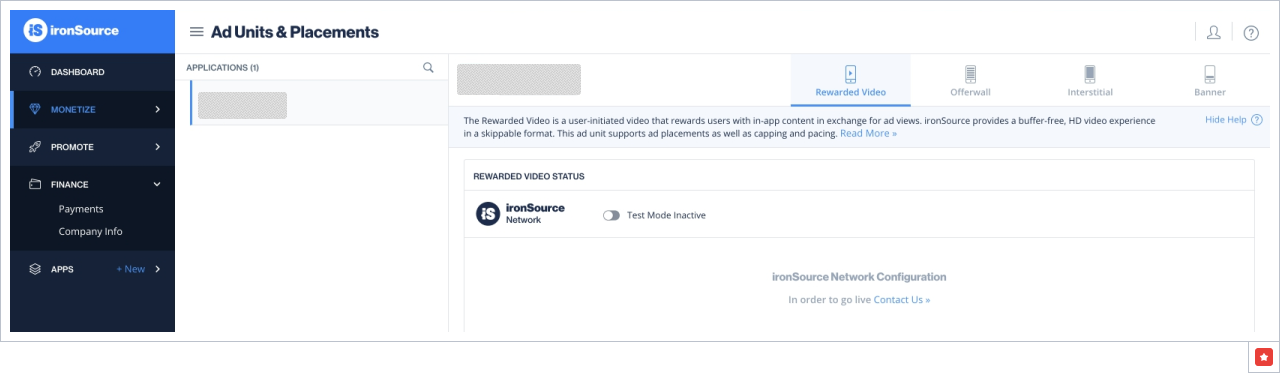
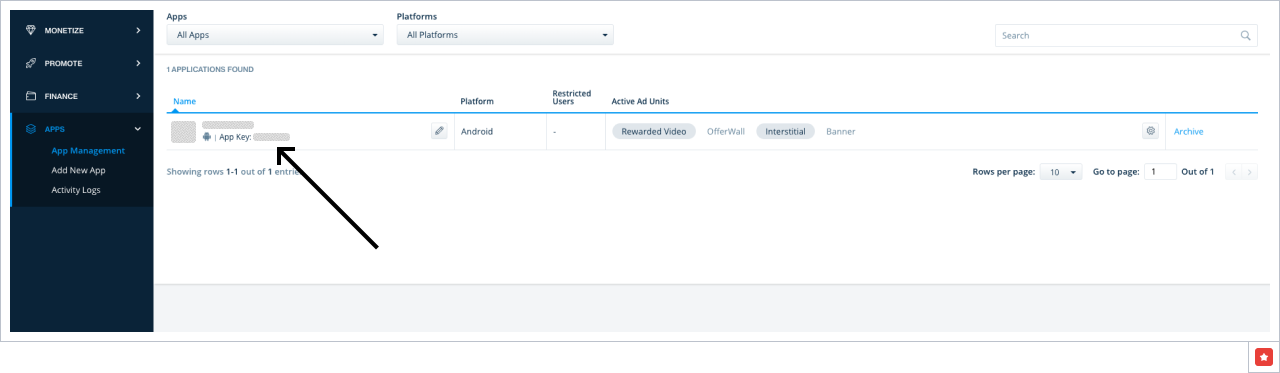
Finally, you need to find your App key on the Application Management page.
Please, note that in order to go live you should contact ironSource support as stated on their website.
Step 4: Add line items on the Appodeal side
Open Mediation settings of the same app in the Appodeal dashboard. In the Line Items tab of Mediation settings find the ironSource ad network and change an account for this network from default to the one you created earlier with this guide.
Enter the App key in the field IronSource App Key and press the Save button.

Then, click on the Add line item button and set it up in the same way as on the screenshot below.
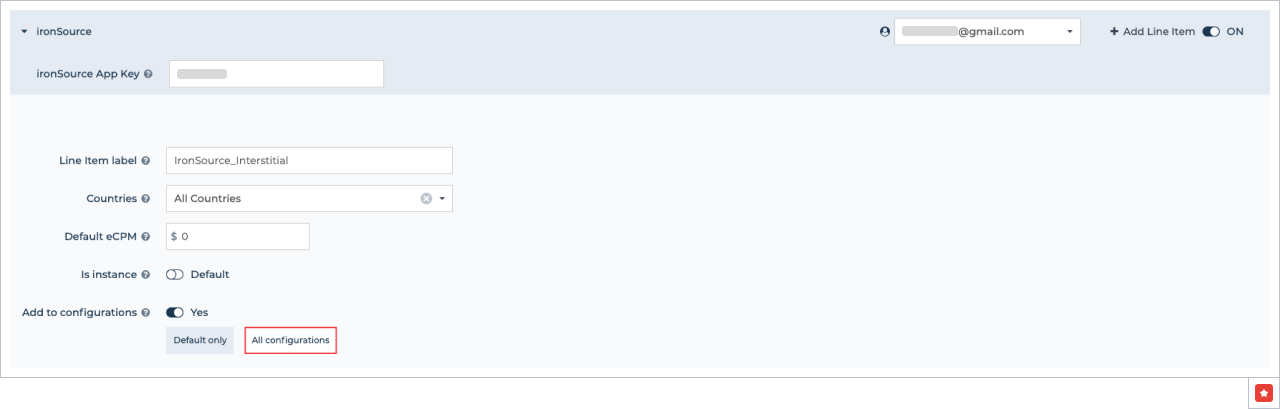
Make sure that the newly created line item is marked as enabled (the toggle is on "ON").
You've successfully connected IronSource!