Testing and Debugging a VAST Campaign
First of all, please check if VAST tag URL matches with all the points from notes section from this article: Creating a VAST campaign.
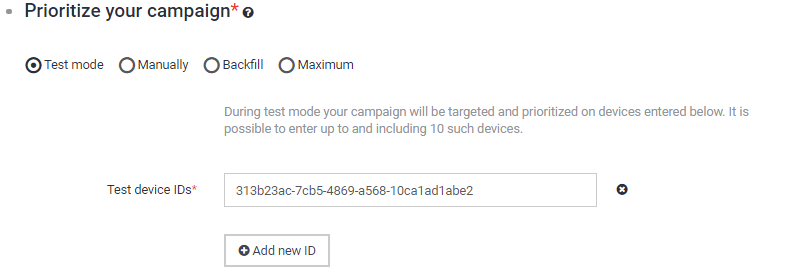
To test a VAST campaign, choose a "Test mode" in "Prioritize your campaign" in campaign settings and put your device advertising ID/IDFA into a "Test device IDs" field and save the campaign.
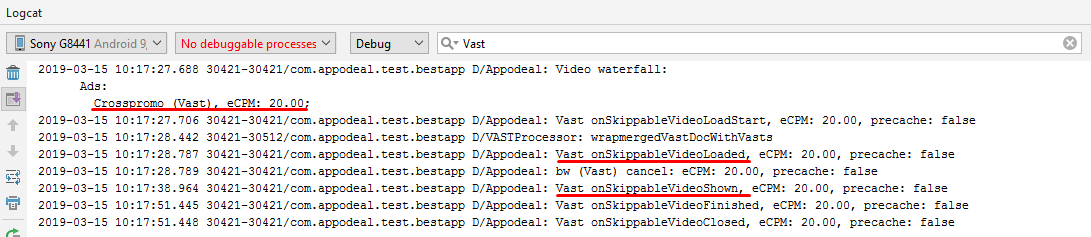
You can check if the campaign is in the ad waterfall by going through Appodeal SDK logs in your app. To enable logging, follow the instructions in this article. If the campaign is loaded and shown, then everything is configured right.
If it is loaded, but not shown, please contact Appodeal support.
If it is not even loaded, please follow the next steps:
-
Configure Charles as a man-in-the-middle HTTPS proxy, following the instructions in these articles:
- Proxy configuration: https://www.charlesproxy.com/documentation/configuration/browser-and-system-configuration/
- SSL Proxying configuration: https://www.charlesproxy.com/documentation/using-charles/ssl-certificates/
-
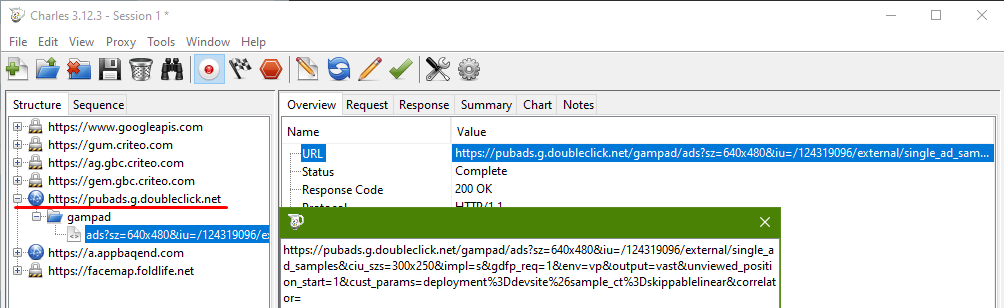
Make sure that there are requests to the VAST URL domain in the Charles after SDK initialization. If it is there, right-click on the one and choose "Enable SSL proxying" option, then restart Charles.
-
Open the request and pay attention to the URL for the following details: there should be no non-parsed macros and whitespaces, the URL should be displayed in its entirety.
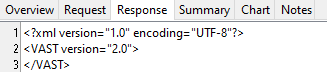
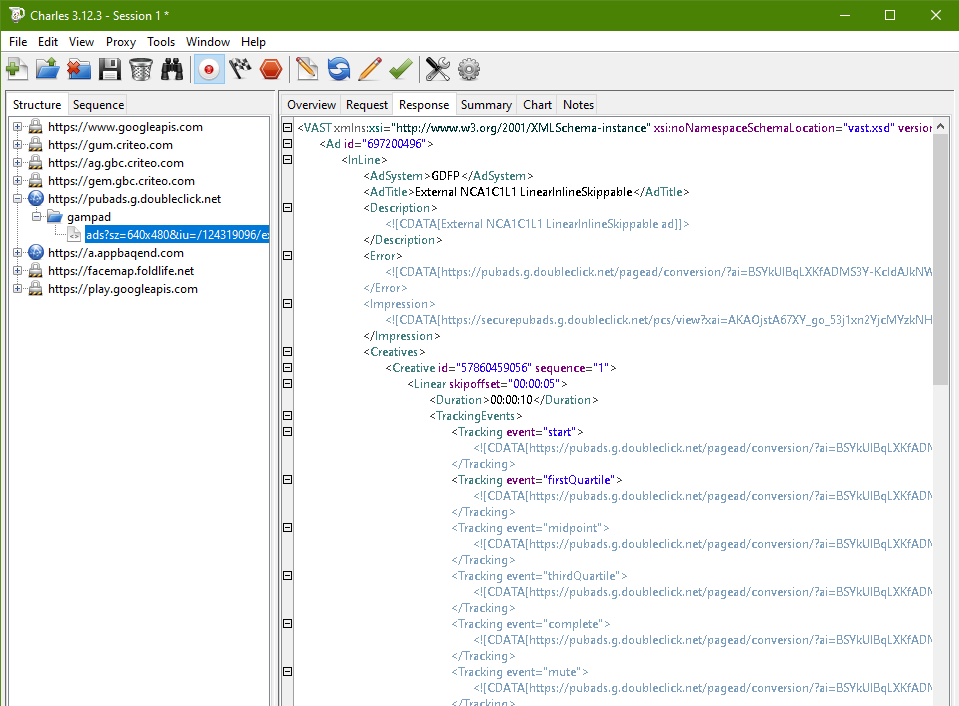
- Click on "Response": you will see a server response, and if everything is fine, it should look like this:
- If response is empty or contains some errors or messages, please contact an ad provider support.