How do I link my AdColony account?
To connect your AdColony account to Appodeal, follow these simple steps.
Step 1: Register AdColony account
Register at https://clients.adcolony.com/signup.
Step 2: Create a new app
Create a new app on the AdColony side.
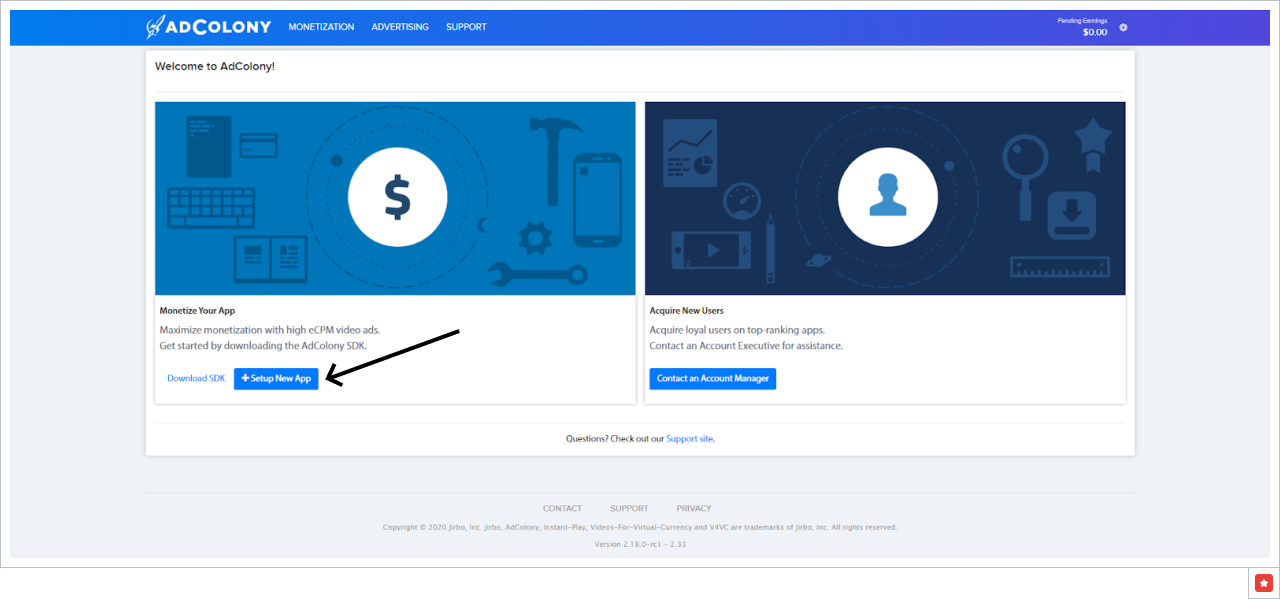
Step 3: Add zones
Add zones to the created app for required ad types.
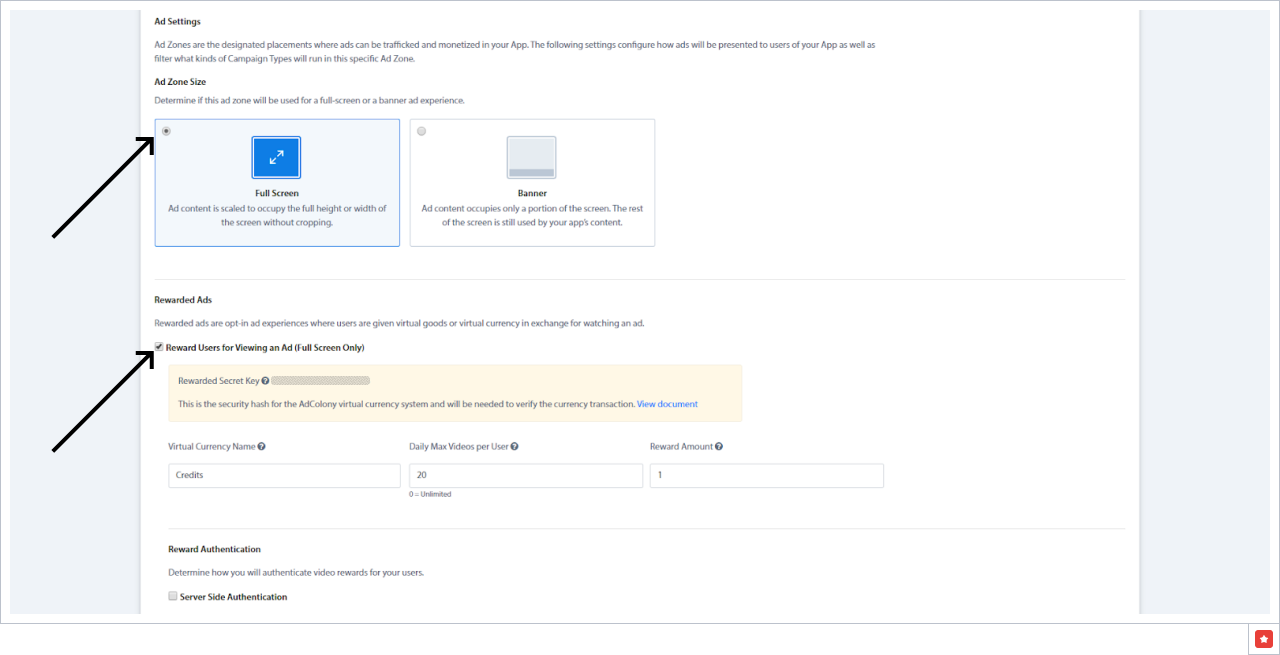
To create a rewarded video zone, choose the "Full Screen" ad type and "Reward Users for Viewing an Ad (Full Screen Only)" option.
Step 4: Link your AdColony account to the Appodeal account
Once you created app and zones on the AdColony network side, open "Network accounts" page on the Appodeal website: https://app.appodeal.com/apps/linked_networks
Choose AdColony and click on "Link your account". Enter Email and API Key in the menu below:
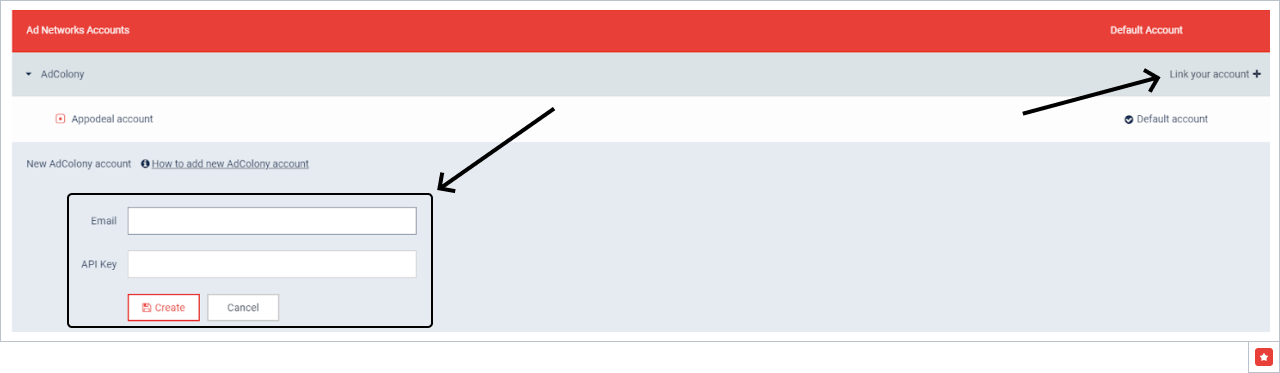
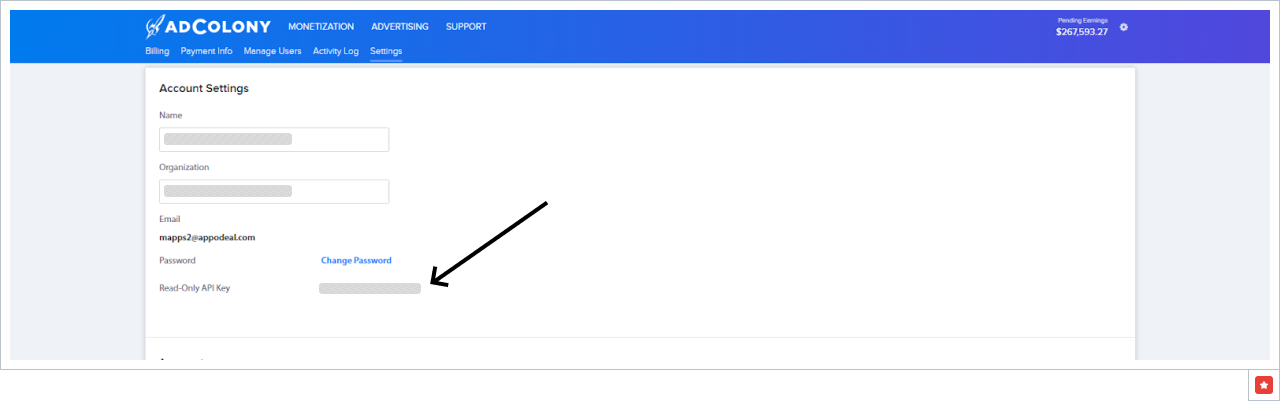
API Key is a "Read-Only API Keys" in the AdColony account settings, it is located right after the password field.
Email is an email address that was used for the AdColony account registration.
Step 5: Create line items for your app
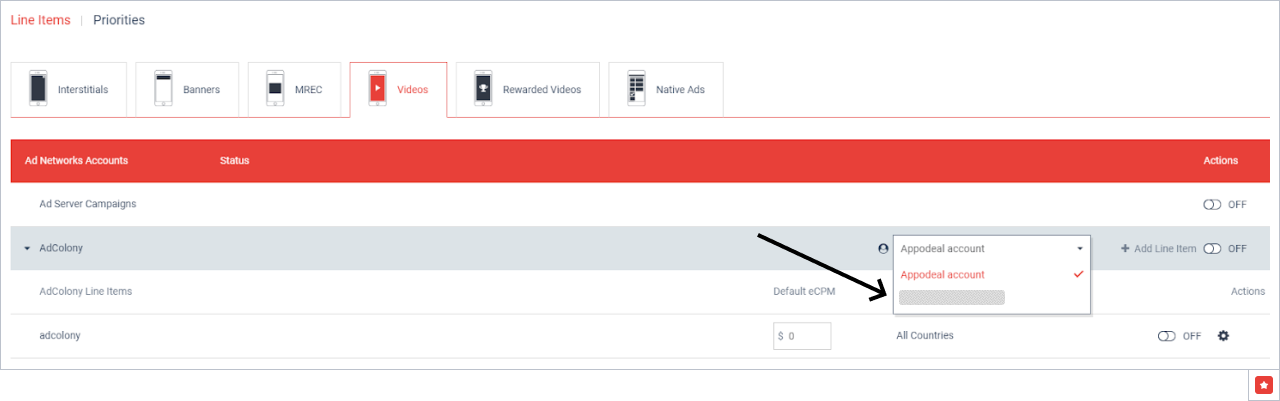
Open App settings -> "Mediation Settings" and choose the created account for the AdColony ad network.
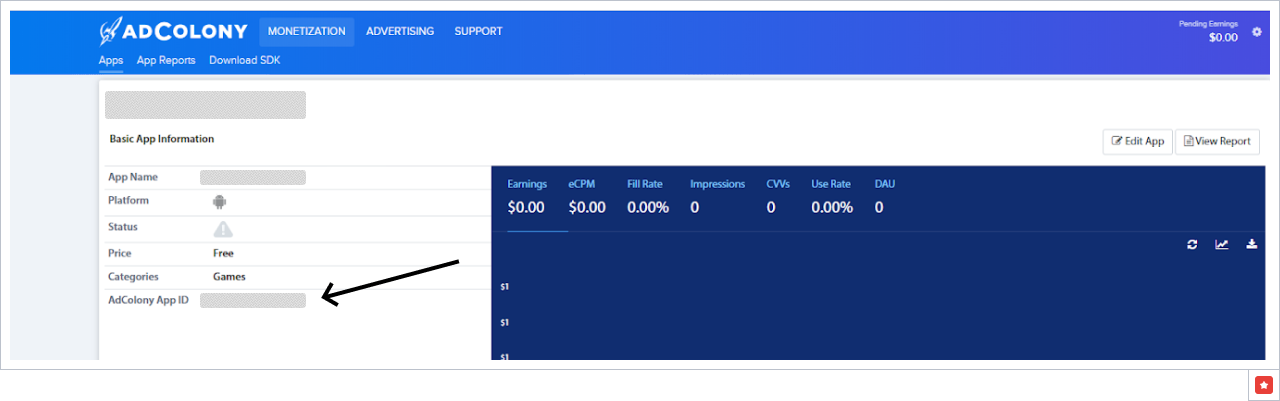
Enter Adcolony App Id. The one can be found on the AdColony account, click on the Monetization tab, then choose the "Apps" tab and click on the required app. The App ID is the last field in the basic app information list.
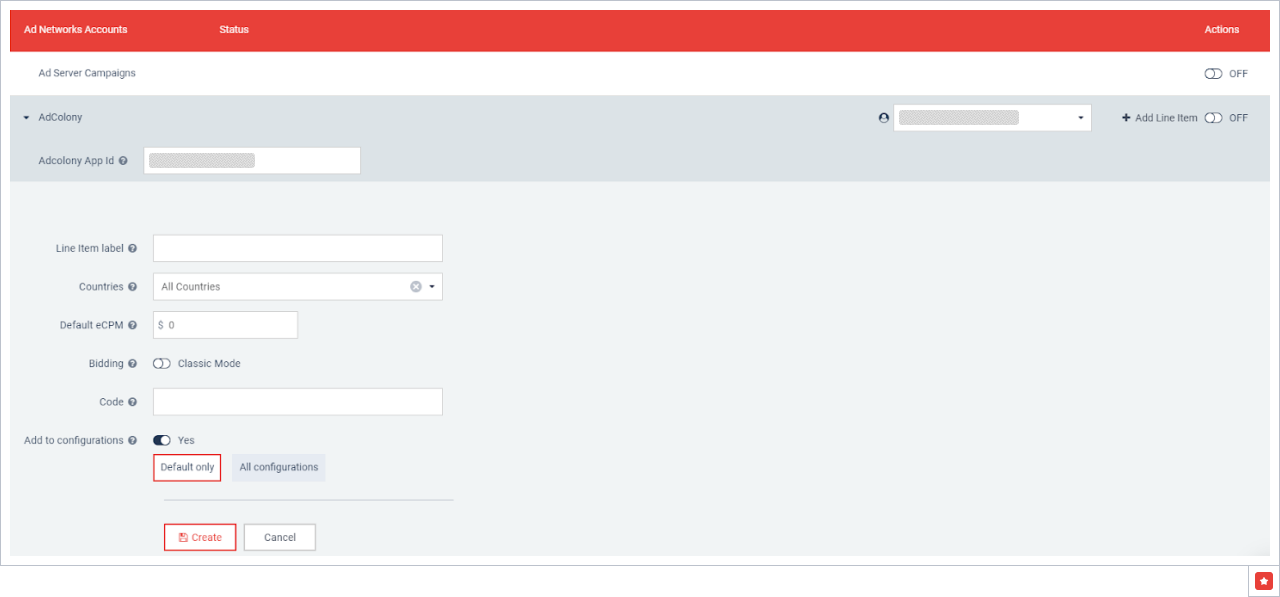
Create a new line item (in App settings - Mediation Settings - Line items - Ad type):
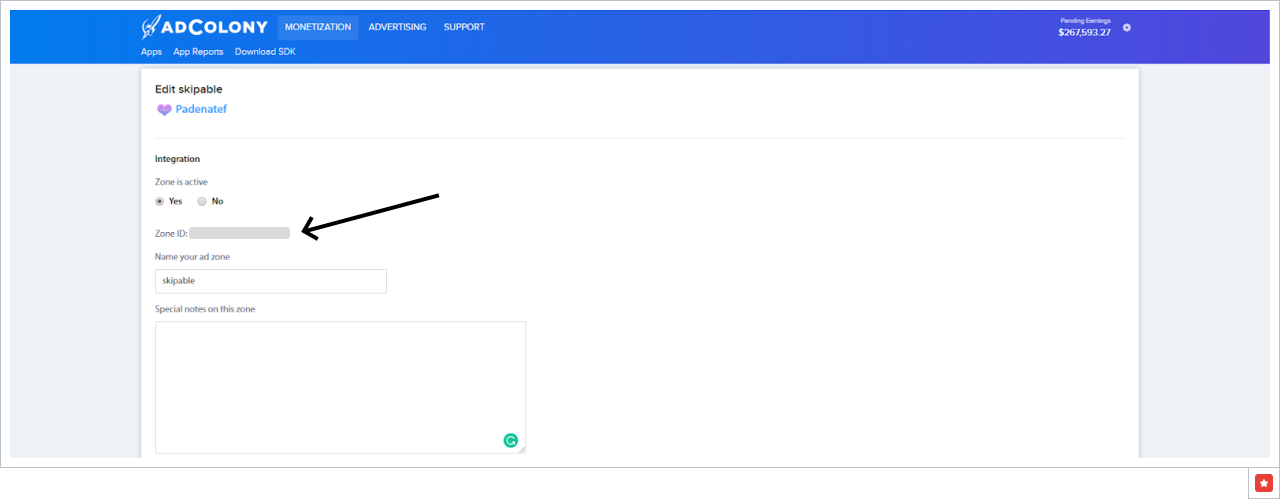
Code is a Zone ID from zone settings (see the screenshot below).
Default eCPM should be set to 0, this network doesn't allow choosing ECPM for a zone.
Also, keep the Add to configurations option enabled to add a line item in the waterfall once it's created.
If you implemented the app-ads.txt file, you should add the AdColony account line. To get one, read the official documentation: https://www.adcolony.com/blog/2019/08/28/how-to-implement-app-ads-txt/