How do I link my AppLovin account?
See also the Networks Setup guide for AppLovin.
To connect your own Applovin account to Appodeal, follow these simple steps.
Step 1: Create an Applovin account
Create an account at https://dash.applovin.com/signup
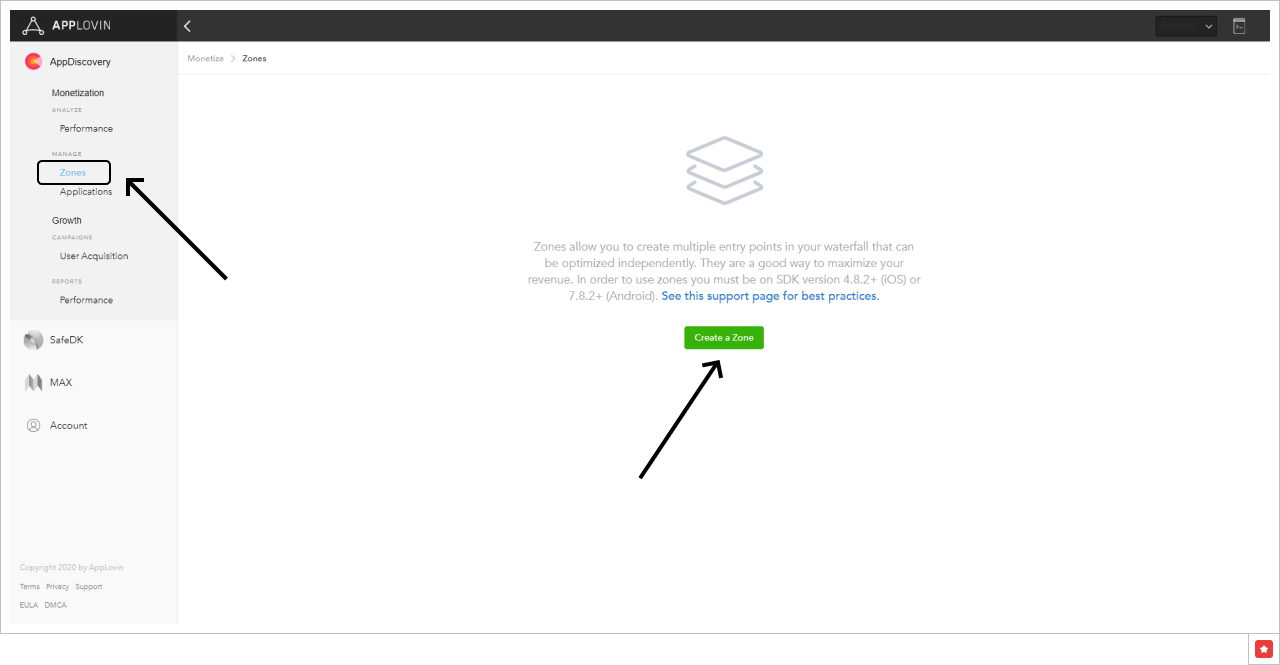
Step 2: Create zones for required ad types
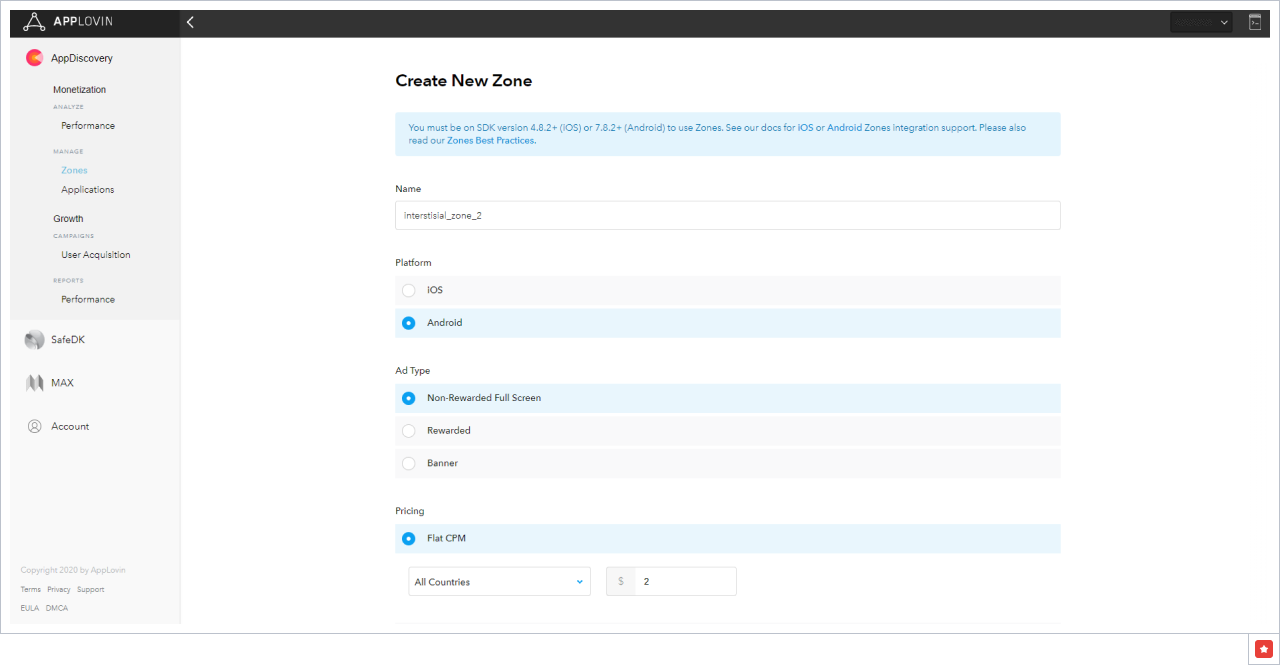
To create an interstitial zone, choose the "Non-Rewarded Full Screen" ad type.
Step 3: Link your Applovin account with Appodeal
Once you created zones on the Applovin network side, open Network accounts page in the Appodeal dashboard: https://app.appodeal.com/apps/linked_networks
Click on the "Applovin" - "Link your account" and fill in "Email", "SDK Key" and "Report Key" fields in the drop-down menu.
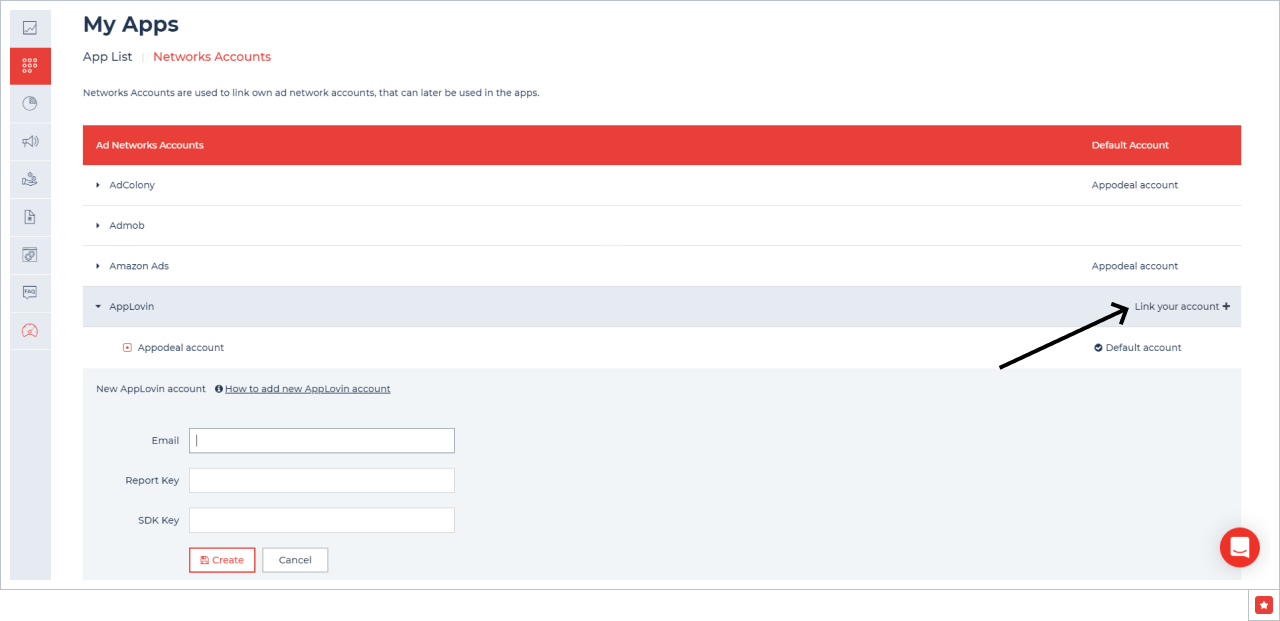
Email: Enter an email address that was used for the Applovin account registration.
SDK Key and Report Key: Log in the Applovin account and click on Account in the lower-left corner and go to the Keys tab. SDK Key and Report Key can be found in the first two fields.
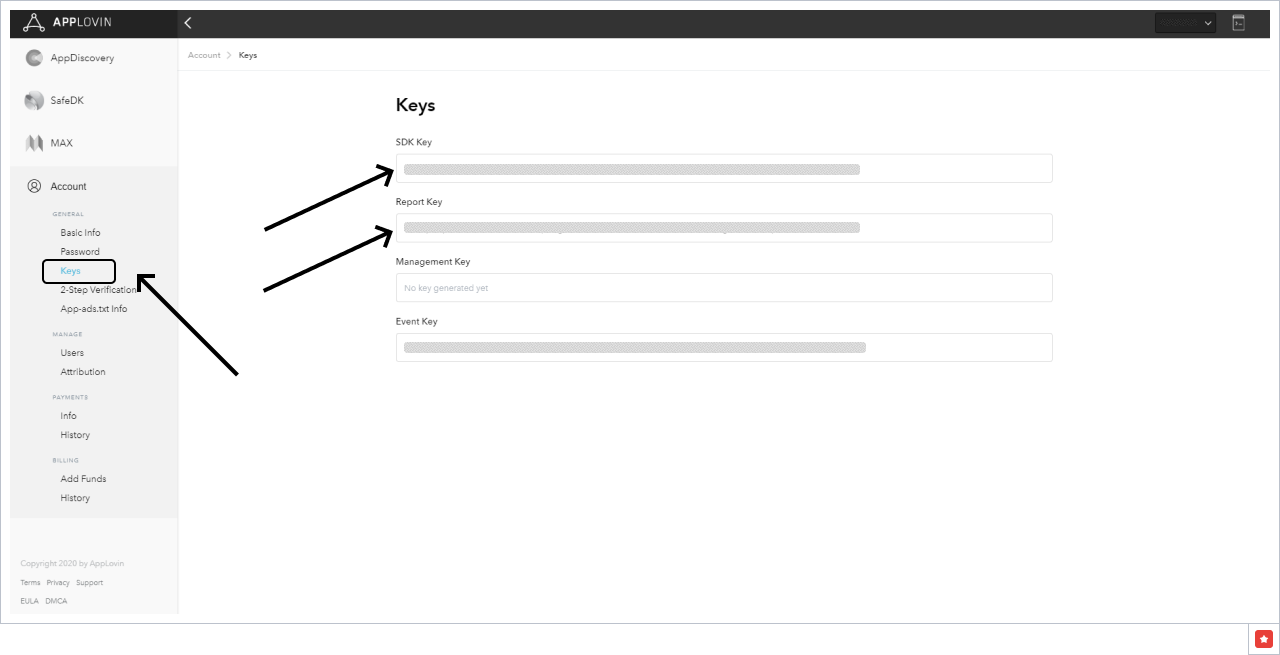
For now, the account is ready to use.
Step 4: Add line items
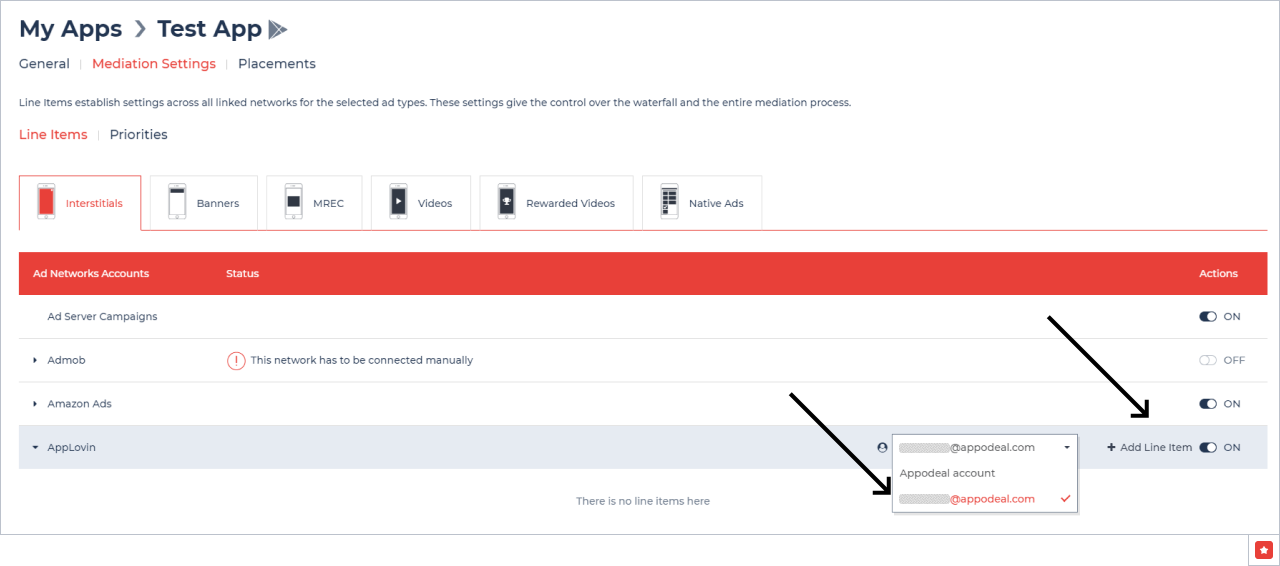
It's time to create line items for an app. Open App Settings, then Mediation Settings. Choose the created account for the Applovin ad network, then click on Add Line item.
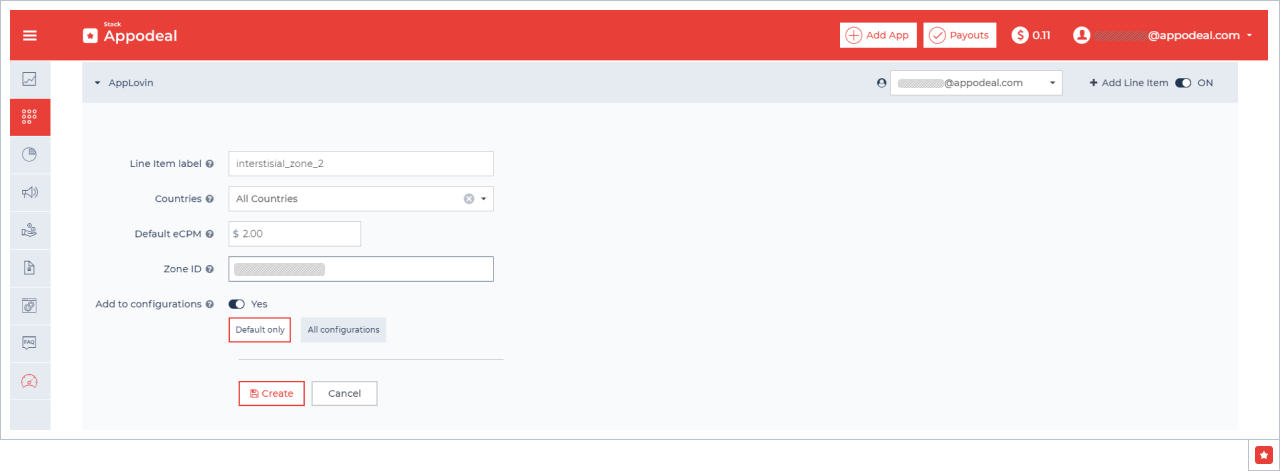
Enter zone data in line item settings and click on Create:
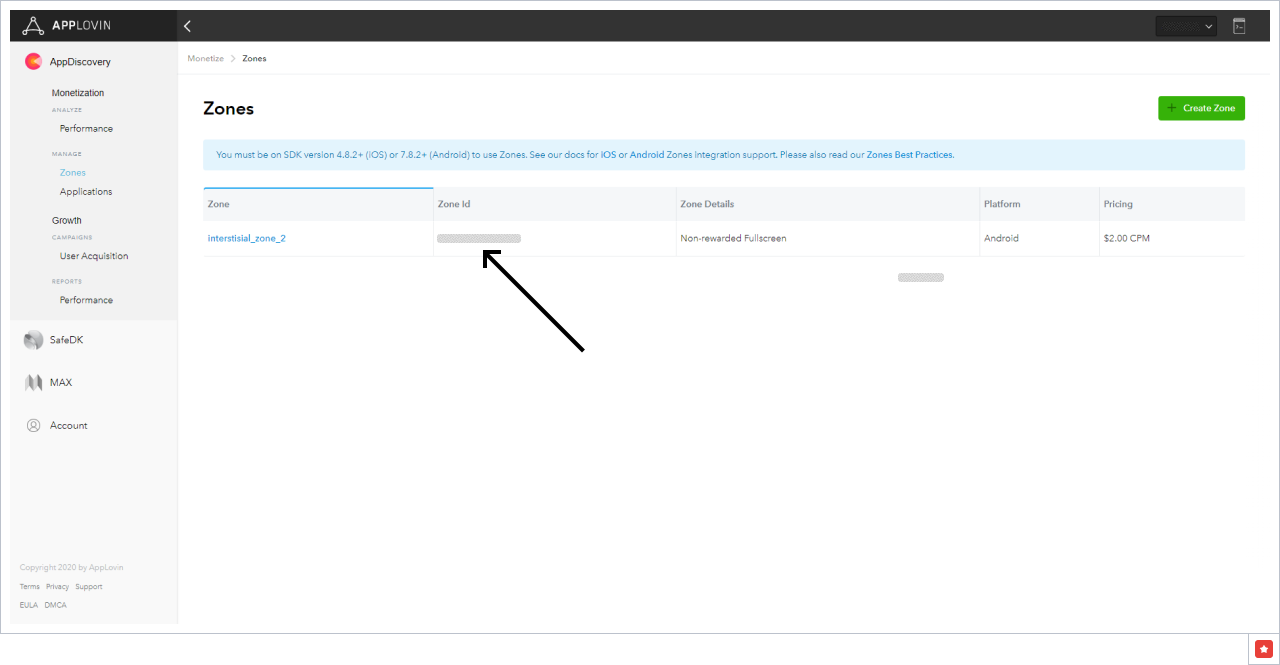
Zone ID: Zone ID from Applovin account (Applovin account - AppDiscovery - Zones):
Default eCPM should be set to the same value as on in the Applovin account when creating a zone. If a zone has Optimized by AppLovin pricing setting, set Default eCPM to 0.
Also, keep the Add to configurations option enabled to add a line item in the waterfall once it's created.
Step 5: Add App-Ads.txt info
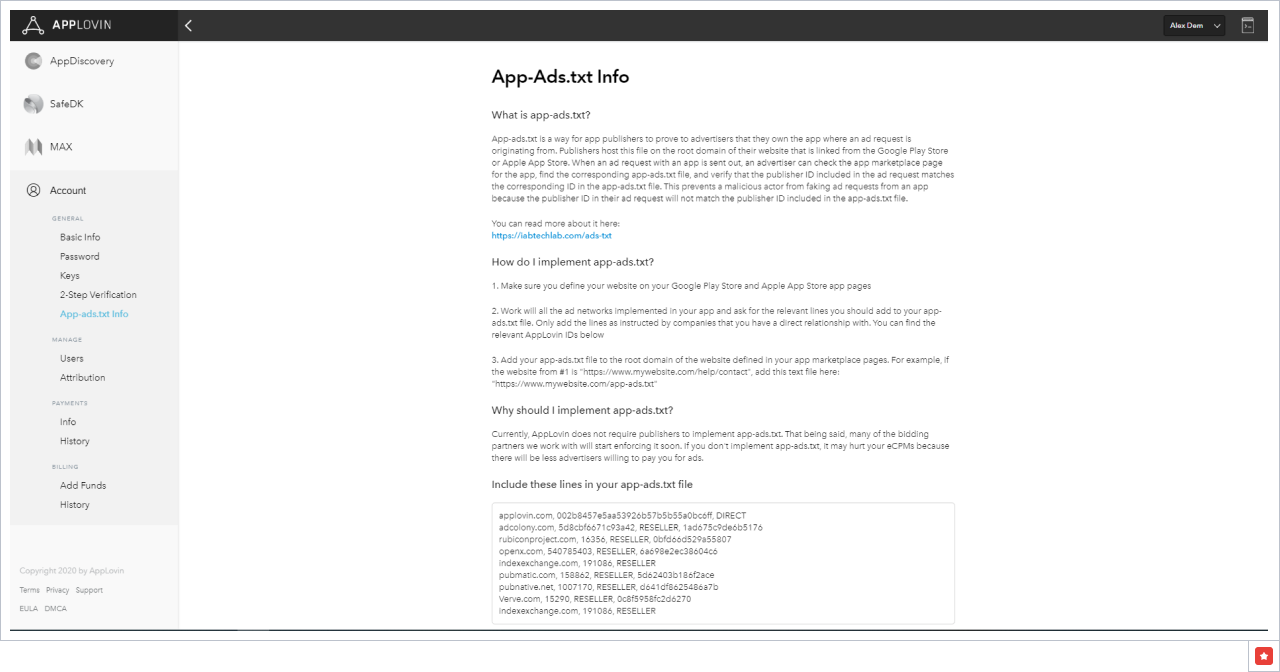
If you implemented the app-ads.txt file, you should add Applovin lines. To get the one open Applovin account and click on Account in the lower-left corner and go to App-ads.txt Info tab and copy and paste all the strings from there into your app-ads.txt file.
Make sure there are no duplicated rows in the file.